This feature may not be available on every account — depends on the management company's configuration.
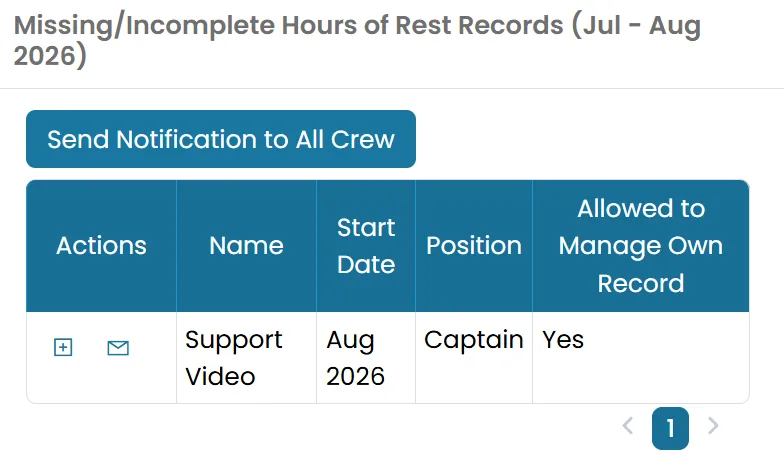
- On the sub-vessel homepage, you will see a tile labeled Missing/Incomplete Hours of Rest Records.
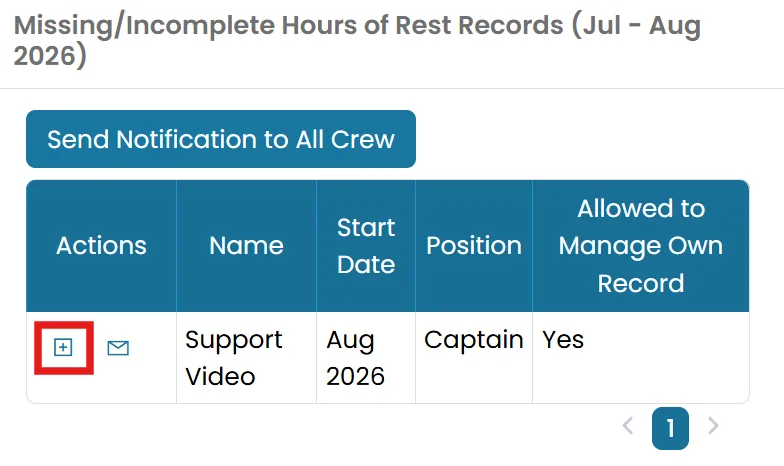
- If you have permission, clicking the Add icon will allow you to create the form for the crew.
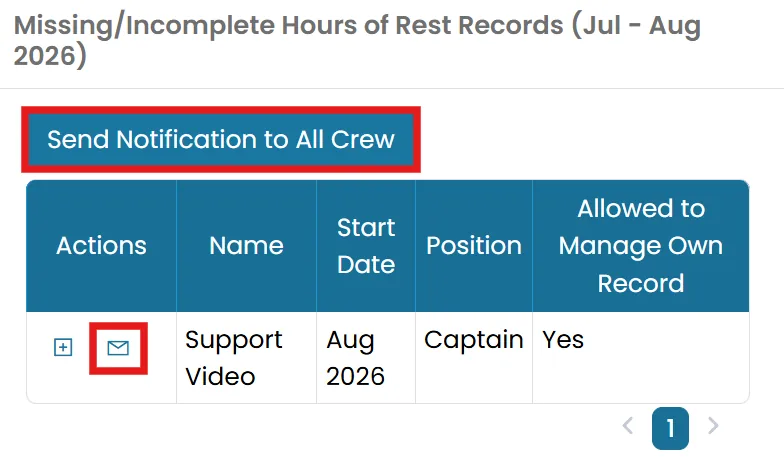
- You can click the Envelope icon to send a notification to specific crew members or click Send Notification to All Crew to notify everyone in the list.
New in Release 2026-08-15
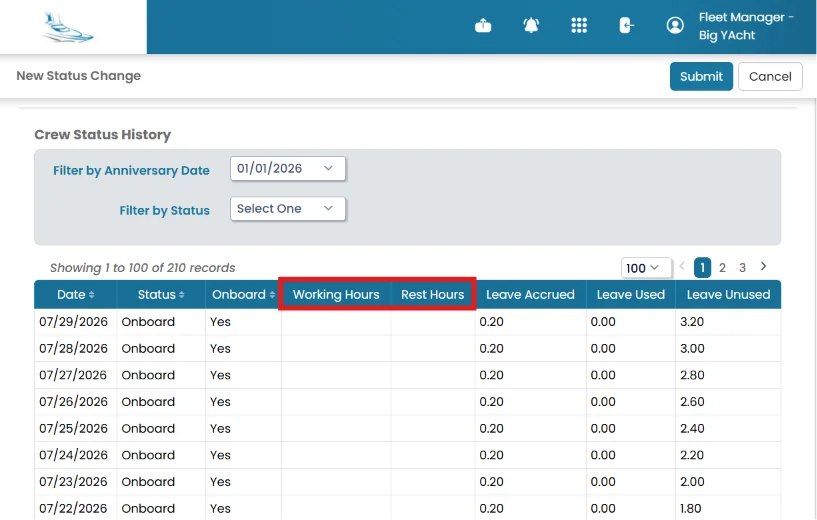
Display Work Hours and Rest Hours History in Status Change Page
The New Status Change page has been updated to display work hours and rest hours within the Crew Status History table. Users can now view a history of Hours of Rest records alongside leave balances when creating or editing a status change.
Why: This enhancement provides users with better visibility of crew availability, rest compliance, and leave information in one place. It helps users make more informed decisions when updating crew status changes.
Where to find it: for Sub-Account User Sub-Account Homepage → Crew Planner Module → All Status Changes folder → Click the three dots → New Status Change Navigation path for Fleet User Fleet Homepage → Switch Account → Select the Vessel → Crew Planner module → All Status Changes → Click the three dots → Select New Status Change Navigation path for Crew User Profile Icon → Select My Leave Planner → Click New Status Change.
See Release Notes for August 15, 2026 for full details.
Still need help?
Our support team will pick it up as a support ticket and reply by email.