Release 2026.08 · August 15, 2026

Crew Planner/Payroll Q2 2026

Version 2026.8.15.0 · For Fleet customers

This release introduces a range of enhancements across the Payroll, Planner, and Crew modules to improve visibility, user permissions, reporting, notifications, and workflow efficiency. New permission controls, reporting options, trigger enhancements, and usability improvements help organizations manage payroll and crew operations more accurately while reducing manual effort and the risk of errors. These updates provide administrators and users with greater control, better access to information, and a more streamlined experience throughout the platform.

What's new for you

  • Payroll Site: Track payroll approvals more easily with separate statuses for payments awaiting approval and payments that have already been approved.
  • Payroll Site: Receive smarter notifications for Advanced Payments, Held Payments, and payroll updates based on payment status and user roles.
  • Payroll Site: Access new and improved payroll reports, including Advanced, Held, Delayed, and Rejected Payments, for better visibility into payment processing.
  • Payroll Site: Reduce payment errors with payment date validation, new permission settings, and the ability to mark rejected payments as completed after manual processing.
  • Payroll Site: Restrict payroll actions and yacht visibility using enhanced user role permissions and managed account access.
  • Fleet and Sub-account User: Backdate salary changes to the first day of the previous month when payroll adjustments are required.
  • Fleet and Sub-account User: View Crew Planner activation dates and check leave balances directly from the Crew Profile.
  • Fleet and Sub-account User: Create status changes request more efficiently by recording flights used, and viewing work and rest hour history in one place.
  • Fleet, Sub-account User Crew: Create status changes more efficiently by adding attachments during creation.
  • Fleet and Sub-account User: Customize the Crew Planner Calendar View by hiding unnecessary columns and exporting schedules in larger A3 or A2 PDF formats.
  • Fleet and Sub-account User: Crew Planner Statistics exports now include the report date for improved record keeping and easier reference.
  • Fleet: Receive a confirmation message before excluding a crew member from Payroll to help prevent accidental payroll exclusions.

New features (9)

NEW

Added Reports Dropdown

Payroll

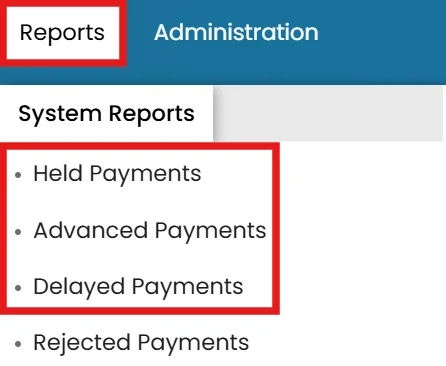
The Advanced, Delayed, and Held Payments views have been moved into a dedicated Reports dropdown. Users can now easily access reports that show the status of alternative payments currently active in the system.

Why it matters: This update provides a more organized way to access alternative payment information, making it easier for users to monitor payment statuses, quickly find relevant details, and manage active payments more efficiently.
Added Reports Dropdown
How to get there Payroll Site Homepage → Administration → Reports Dropdown → System Reports Tab
NEW

Rejected Payments Report

Payroll

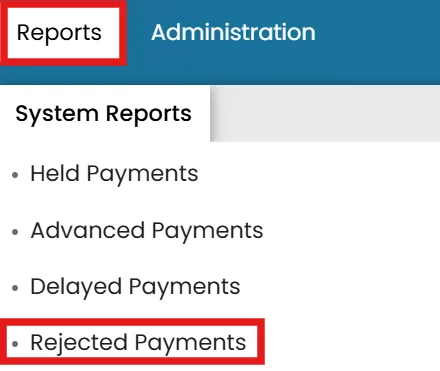
A new Rejected Payments Report has been added to provide visibility into payments that have been rejected by the bank. The report displays rejected payments along with the rejection reason, where available.

Why it matters: This enhancement helps users quickly identify failed payments, understand the reason for rejection, and take appropriate action to resolve payment issues more efficiently.

Rejected Payments Report
How to get there Payroll Site Homepage → Administration → Reports Dropdown → System Reports Tab → Rejected Payments
NEW

Managed Account Selector for User Roles

Payroll

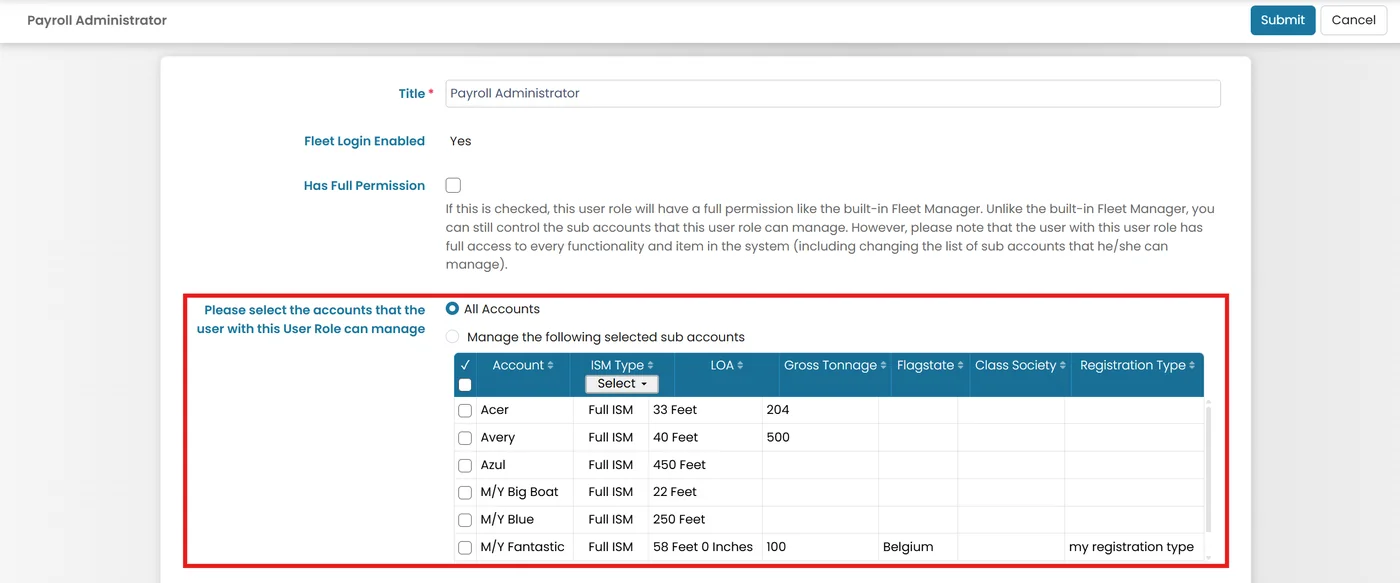
A new managed account selector has been added to user roles, matching the functionality available in the Management Platform. This allows administrators to assign specific managed accounts (yachts) to users and control which yachts they can access.

Why it matters: This enhancement improves user access control by ensuring individuals only have visibility of the yachts they are responsible for managing. It helps protect sensitive information, reduces unnecessary access, and provides a more tailored user experience.

Related walkthrough: Create User Role

Video not playing? Watch it on YouTube ↗

Managed Account Selector for User Roles
How to get there Payroll Site Homepage→ Administration → User Roles → Click the three-dot menu (⋮) → Select New User Role.
NEW

Hold Payment Permission

Fleet

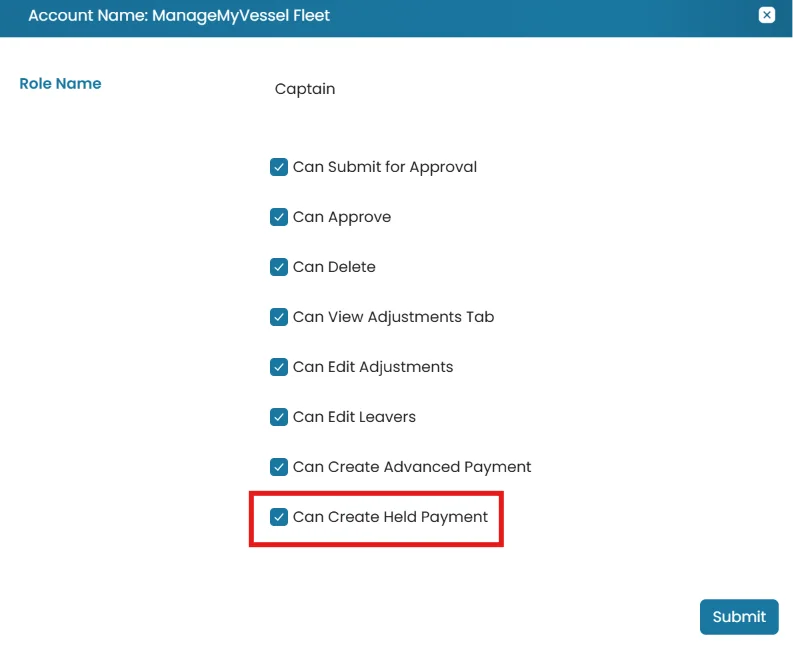
A new user role permission has been added to control who can manually place a payment on hold. Management companies can now restrict this action to authorized users based on their assigned role.

Why it matters: This enhancement improves payment security and governance by ensuring only designated users can place payments on hold. It helps prevent unauthorized or accidental holds while providing greater control over the payment workflow.

Related walkthrough: Adding Payroll Administrator

Video not playing? Watch it on YouTube ↗

Hold Payment Permission
How to get there Management Site → Fleets Homepage → Payroll Module → Administration → Payroll Administrator.
NEW

Advanced Payment Permission

Fleet

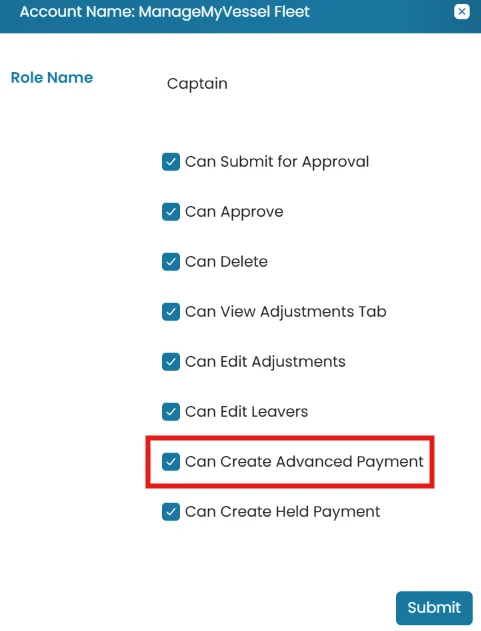
A new user role permission has been added to control who can create Advanced Payments. Management companies can now restrict the ability to create Advanced Payments based on a user's assigned role.

Why it matters: This enhancement improves security and operational control by ensuring only authorized users can create Advanced Payments. It helps reduce the risk of unauthorized or accidental payment requests while supporting better governance of the payment process.

Related walkthrough: Adding Payroll Administrator

Video not playing? Watch it on YouTube ↗

Advanced Payment Permission
How to get there Management Site → Fleets Homepage → Payroll Module → Administration → Payroll Administrator.
NEW

Hide Crew Position in Crew Planner Calendar View

FleetSub-Account

A new checkbox has been added to the Crew Planner Calendar View that allows users to hide the Crew Position column. This gives users more control over the layout by reducing unnecessary information displayed on the screen.

Why it matters: Hiding the Crew Position column creates more space in the calendar view, making schedules easier to read and navigate, especially when working with large amounts of crew planning data.

Hide Crew Position in Crew Planner Calendar View
How to get there Homepage → Crew Planner Module → Calendar View → Uncheck the Show Crew Position checkbox.
NEW

Hide Position ID in Crew Planner Calendar View

FleetSub-Account

A new checkbox has been added to the Crew Planner Calendar View that allows users to hide the Position ID column. Giving users more flexibility in customizing the calendar layout.

Why it matters: This enhancement helps maximize the available space in the calendar view by hiding unnecessary columns, making schedules easier to read and improving the overall user experience.

Hide Position ID in Crew Planner Calendar View
How to get there Homepage → Crew Planner Module → Calendar View → Uncheck the Show Position ID checkbox.
NEW

Confirmation Prompt When Excluding Crew from Payroll

Fleet

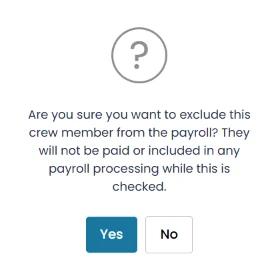
A confirmation message has been added when excluding a crew profile from the Payroll module. Before the change is applied, users will be asked to confirm that excluding the crew member means they will not be included in payroll or receive payment.

Why it matters: This enhancement helps prevent accidental exclusions by ensuring users understand the impact before confirming the action. It reduces the risk of crew members being unintentionally omitted from payroll.

Confirmation Prompt When Excluding Crew from Payroll
How to get there Fleet Homepage → Crew Module → View Crew Profile → Edit → Financial Tab → Check the box for Exclude from Payroll
NEW

Rejected Payments – Add Option to Mark Payment as Completed

Payroll

Add an option that allows authorized users to mark a Rejected Payment as Completed when the payment has been successfully processed manually outside of the system. This option will be controlled through a user role permission setting, ensuring that only users with the appropriate access can update the payment status.

Why it matters: This enhancement provides a way to accurately reflect payments that have been completed outside the system while maintaining proper control over who can make these updates. It prevents rejected payments from remaining incorrectly marked as unresolved and improves payment tracking, reporting accuracy, and overall workflow management. By restricting this action through permissions, it also helps maintain accountability and system security.

Video walkthrough: N/A

Video not playing? Watch it on YouTube ↗

Rejected Payments – Add Option to Mark Payment as Completed

Updated features (19)

UPDATED

“Payments Created” Button Split into Two Options

Payroll

Split the “Payments Created” into 2 distinct statuses: Change status to Payments Created – Awaiting Approval Approve Payments Created Status

Why it matters: This makes it much easier to identify which payroll records still require a second approval and which have already been approved.

Related walkthrough: How to Process Payroll

Video not playing? Watch it on YouTube ↗

“Payments Created” Button Split into Two Options
How to get there Payroll Site → View a vessel payroll with an Open status → Change Status to Submitted for Funding → Change Status to Funding Received → Change Status to Payments Created – Awaiting Approval → Approve Payments Created Status.
UPDATED

Advanced Payment Trigger Notifications

Payroll

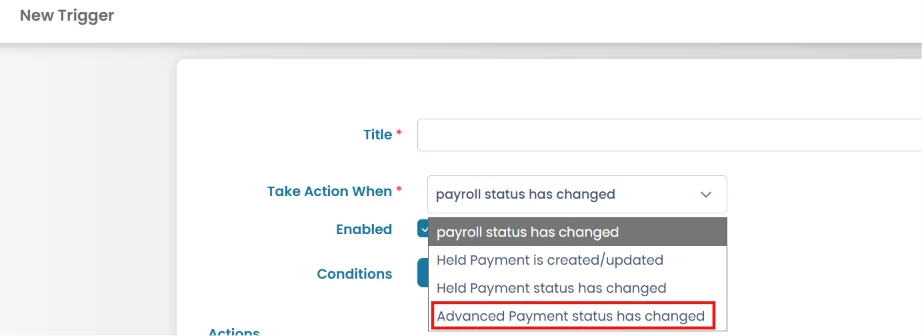
New notification triggers have been added for Advanced Payments. Users can now receive notifications when an Advanced Payment is created and whenever its status changes as it progresses through the workflow

Why it matters: This enhancement keeps the appropriate users informed of key Advanced Payment events in real time, improving visibility, streamlining communication, and helping ensure timely action throughout the payment process.

Related walkthrough: Triggers and Automations

Video not playing? Watch it on YouTube ↗

Advanced Payment Trigger Notifications
How to get there Payroll Site Homepage → Administration → Triggers and Automations → Click the three-dot menu (⋮) → Select New Trigger.
UPDATED

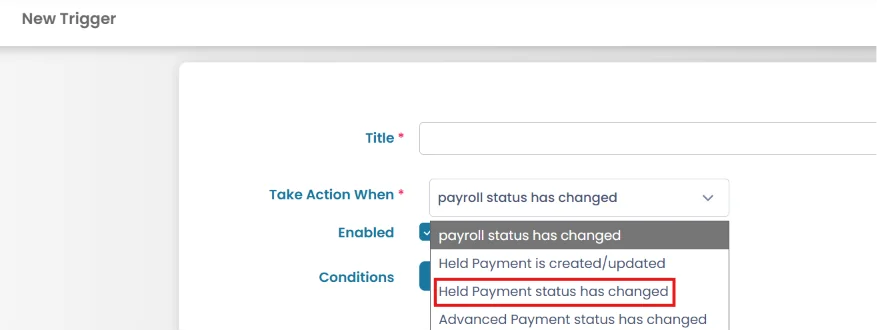
Held Payment Trigger Notifications

Payroll

New notification triggers have been added for Held Payments. Users can now receive notifications when a Held Payment is created and when its status changes, including when it is released.

Why it matters: This enhancement keeps the appropriate users informed of key Advanced Payment events in real time, improving visibility, streamlining communication, and helping ensure timely action throughout the payment process.

Related walkthrough: Triggers and Automations

Video not playing? Watch it on YouTube ↗

Held Payment Trigger Notifications
How to get there Payroll Site Homepage → Administration → Triggers and Automations → Click the three-dot menu (⋮) → Select New Trigger.
UPDATED

Payment Date

Payroll

The payment date field has been updated to only allow users to select dates from today up to the next 30 days. This applies when entering payment dates for payroll records and other payments.

Why it matters: This improvement helps prevent errors caused by entering incorrect payment dates, such as dates in the past or dates too far in the future. It ensures payment schedules are entered accurately and helps maintain smoother payment processing.

UPDATED

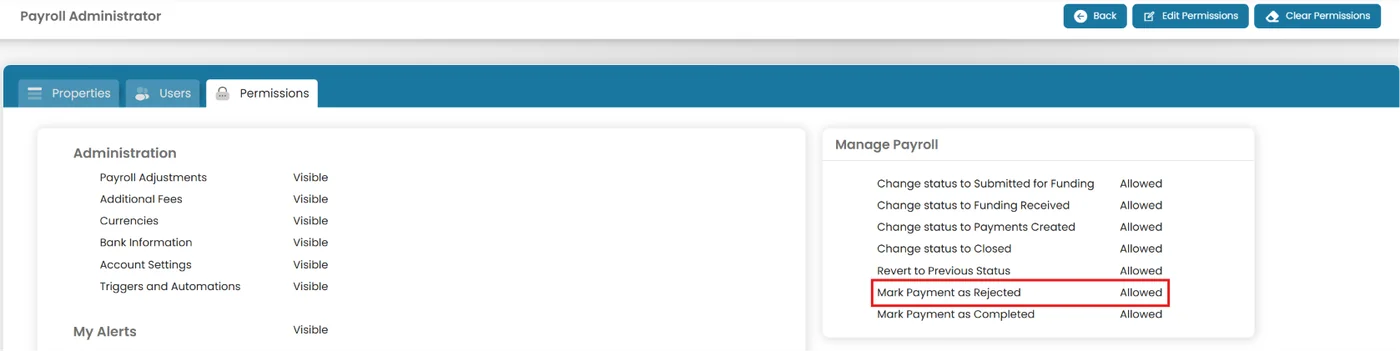
New Permission – Mark payment as rejected

Payroll

A new user role permission has been introduced to control who can manually mark payments as rejected. Only users with the appropriate permission will be able to update a payment status to Rejected.

Why it matters: This enhancement improves payment security and control by ensuring that only authorized users can reject payments. It helps reduce the risk of accidental payment rejections and supports a more reliable payment management process.

Related walkthrough: Create User Role

Video not playing? Watch it on YouTube ↗

New Permission – Mark payment as rejected
How to get there Payroll Site Homepage → Administration → User Role → Click the View icon → Open the Permissions tab → Select Edit Permissions.
UPDATED

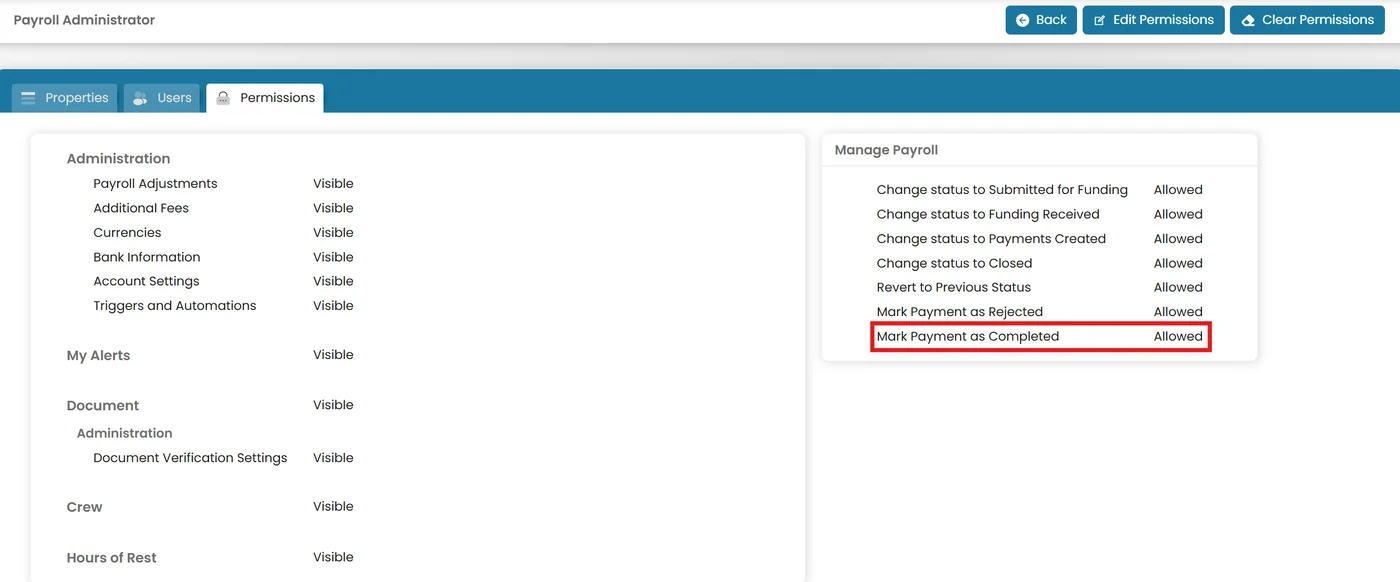
New Permission – Mark Payment as Completed

Payroll

A new “Mark Payment as Completed” permission has been added to User Role Permissions.

Why it matters: Administrators can now control which user roles are allowed to mark a payroll payment as completed. This provides better control over payroll processing and helps ensure that only authorized users can complete payments.

Related walkthrough: Create User Role

Video not playing? Watch it on YouTube ↗

New Permission – Mark Payment as Completed
How to get there Payroll Site Homepage → Administration → User Role → Click the View icon → Open the Permissions tab → Select Edit Permissions.
UPDATED

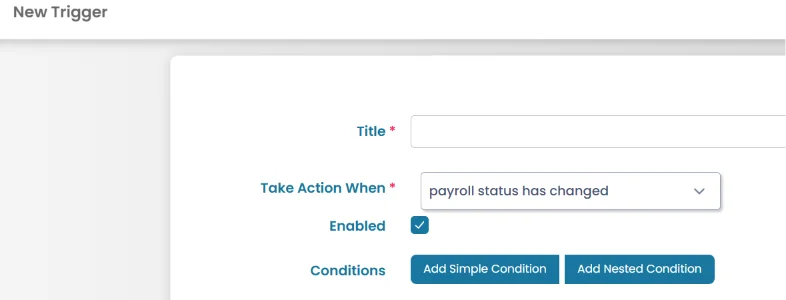
Add conditions to Triggers & Automations based on the status

Payroll

Status-based conditions have been added to all new and updated triggers and automations, allowing users to control notifications based on the status of a payroll or payment. This functionality also applies to Advanced Payments and Held Payments.

Why it matters: This enhancement provides greater control over automated notifications by ensuring alerts are only sent to the relevant users at the appropriate stage of the workflow. It helps reduce unnecessary notifications, improves communication, and ensures important status changes are actioned promptly.

Related walkthrough: Triggers and Automations

Video not playing? Watch it on YouTube ↗

Add conditions to Triggers & Automations based on the status
How to get there Payroll Site Homepage → Administration → Triggers and Automations → Click the three-dot menu (⋮) → Select New Trigger.
UPDATED

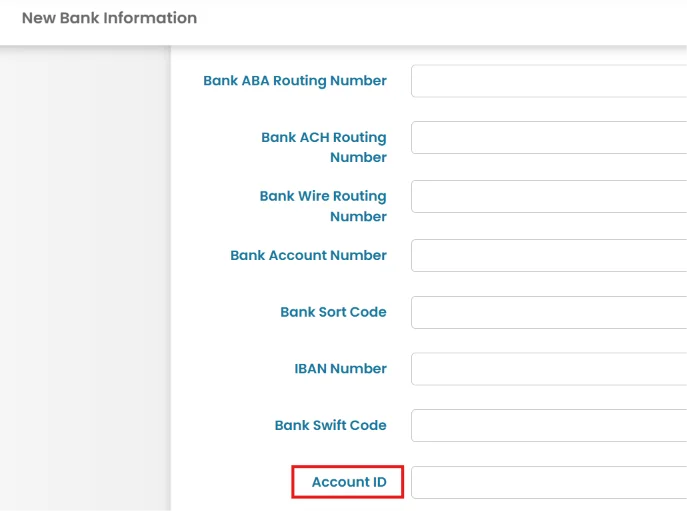
Source Bank Account ID Field

Payroll

A new Account ID field has been added to the Source Bank settings. Users can enter bank-specific identifiers required for processing transactions, including those needed for the Global Disbursements payment type.

Why it matters: This enhancement improves payment processing accuracy by allowing required bank identifiers to be stored and used during transactions. It helps ensure Global Disbursements payments are processed smoothly and reduces the risk of payment delays caused by missing account information.

Source Bank Account ID Field
How to get there Payroll Site Homepage → Administration → Bank Information → Select/Add a Source Bank → Enter Account ID.
UPDATED

Remove ability to delete Held Payments after they have been Submitted for Funding

Payroll

The ability to delete Held Payments has been restricted once they have been submitted for funding. To delete a Held Payment, users must first revert the main payroll record status back to Open before removing the held payment.

Why it matters: This update helps prevent payment processing issues where other parts of a payroll have already progressed, but a deleted Held Payment becomes stuck and cannot be processed. The restriction ensures payment workflows remain consistent and reduces the risk of incomplete or unpayable transactions.

UPDATED

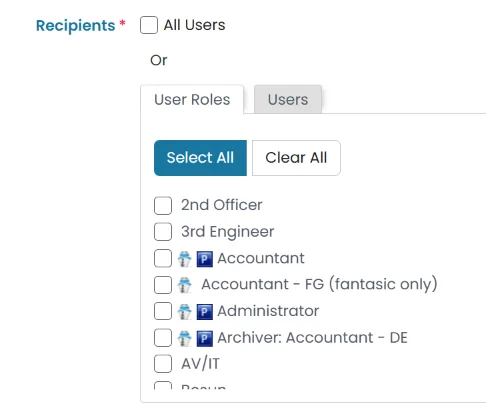
Role-Based Trigger & Automation Recipients

Fleet

Triggers and Automations now allow user roles to be selected as recipients for alerts and email notifications. Instead of sending notifications to fixed recipients, administrators can configure which user roles receive specific alerts.

Why it matters: This enhancement gives organizations greater control over notifications by ensuring alerts and emails are sent only to the appropriate users. It helps reduce unnecessary notifications, improves communication, and ensures important updates reach the right people.

Related walkthrough: Payroll Triggers and Automations

Video not playing? Watch it on YouTube ↗

Role-Based Trigger & Automation Recipients
How to get there Management Site → Fleets Homepage → Payroll Module → Administration → Triggers and Automations → Create or edit a Trigger or Automation → Add Action → Select Recipients.
UPDATED

Extended Salary Backdating

FleetSub-Account

The effective date can now go as far back as the first day of the previous month, provided that previous month's payroll has already been approved or submitted for approval. Previously, the effective date could only go as far back as the first day of the current month.

Why it matters: This gives payroll administrators more flexibility when applying salary changes to an earlier period. It allows them to update salary information for the previous month when that payroll has already been approved or submitted for approval, helping ensure the salary change is applied to the appropriate payroll period.

UPDATED

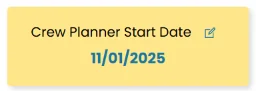
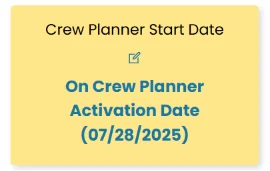
Crew Planner Activation Date Display

FleetSub-Account

The Crew Planner tab in the Crew Profile now displays the actual activation date when the Crew Planner Start Date option is set to On Crew Planner Activation Date. This allows users to see the start date directly within the crew profile.

Why it matters: This enhancement improves visibility by making the Crew Planner start date readily available, eliminating the need to navigate to other pages to find the information. It helps users quickly verify activation dates and manage crew planning more efficiently.

Before

Crew Planner Activation Date Display (before)

After

Crew Planner Activation Date Display
How to get there Homepage → Crew Module → View Crew Profile → Crew Planner Tab →
UPDATED

Leave Unused by Date

FleetSub-Account

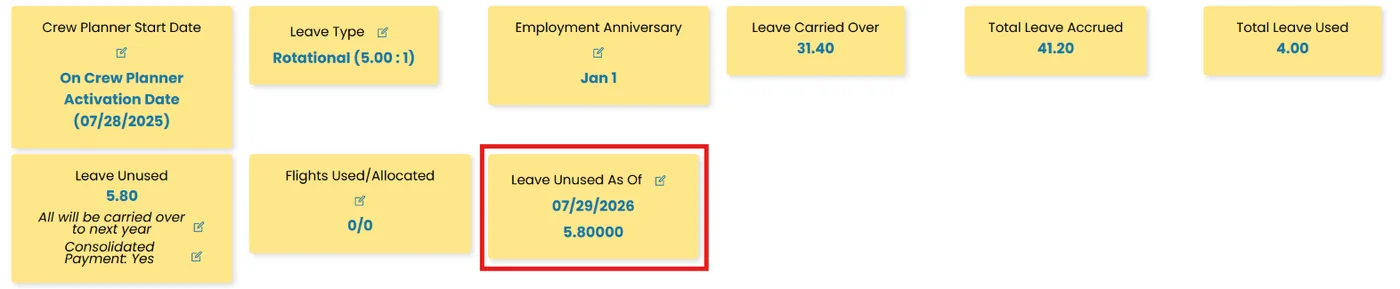
A new Leave Unused by Date field has been added to the Crew Planner tab in the Crew Profile. Users can now view a crew member's unused leave balance for a specific date directly from the profile.

Why it matters: This enhancement makes it easier for crew, vessel, and fleet users to quickly check leave balances without navigating to other pages or running reports. It improves efficiency and provides faster access to important leave information.

Before

Leave Unused by Date (before)

After

Leave Unused by Date
How to get there Homepage → Crew Module → View Crew Profile → Crew Planner Tab →
UPDATED

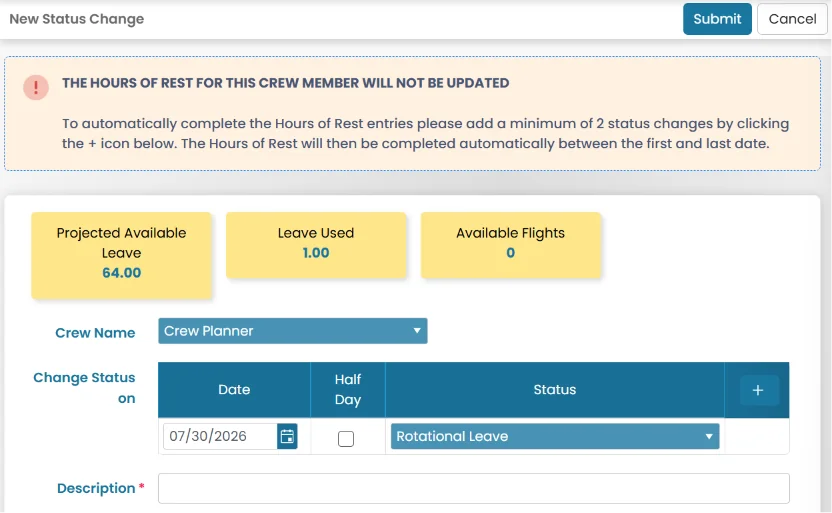
Adding Attachments for Status Change Requests in Crew Planner

FleetSub-AccountCrew

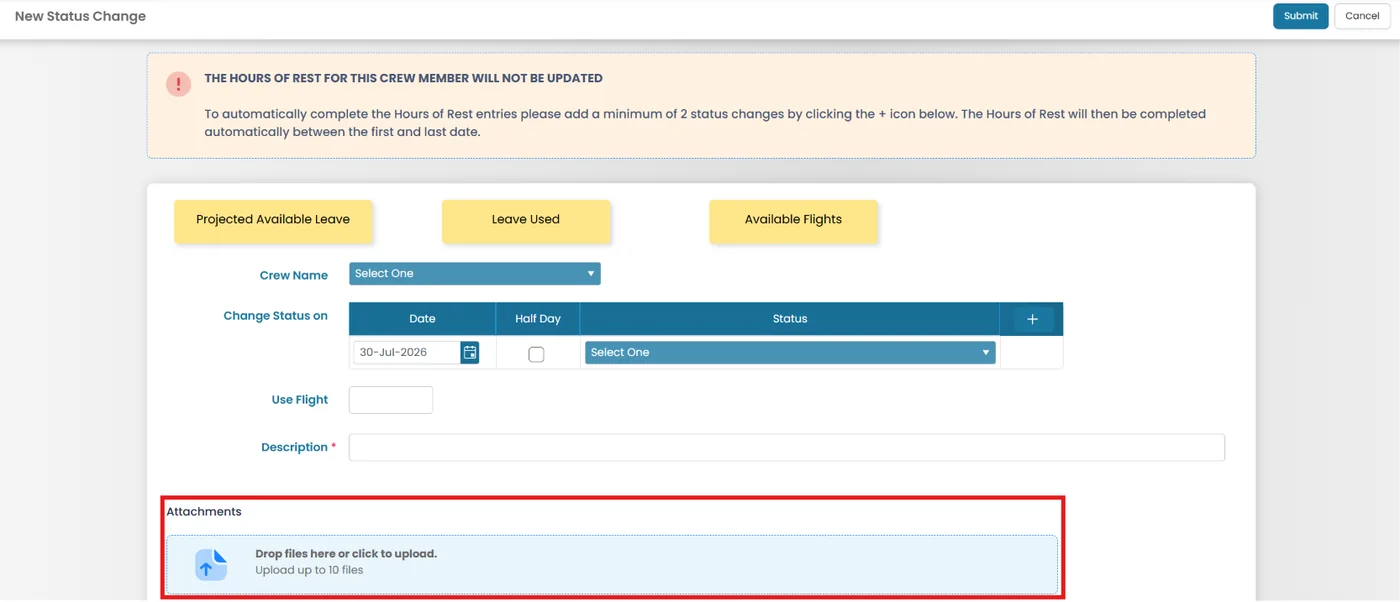
Users can now add attachments while creating or editing a status change. Previously, attachments could only be added after the status change had been created through a separate page.

Why it matters: This enhancement streamlines the status change process by allowing supporting documents to be uploaded at the same time the status change is created or edited. It reduces extra steps, improves efficiency, and helps ensure all relevant documentation is captured in one place.

Video walkthrough: Creating and Editing a Status Change (Sub-Account Guide)

Video not playing? Watch it on YouTube ↗

Before

Adding Attachments for Status Change Requests in Crew Planner (before)

After

Adding Attachments for Status Change Requests in Crew Planner
How to get there for Sub-Account User Sub-Account Homepage → Crew Planner Module → All Status Changes folder → Click the three dots → New Status Change Navigation path for Fleet User Fleet Homepage → Switch Account → Select the Vessel → Crew Planner module → All Status Changes → Click the three dots → Select New Status Change Navigation path for Crew User Profile Icon → Select My Leave Planner → Click New Status Change.
UPDATED

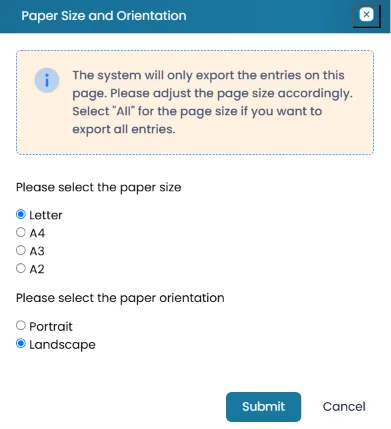
A3 and A2 PDF Export Options for Crew Planner Calendar View

FleetSub-AccountPayroll

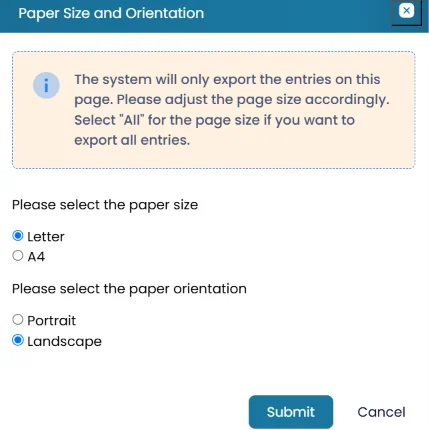
Additional page size options have been added when exporting the Crew Planner Calendar View to PDF. Users can now select A3 or A2 page sizes, allowing larger calendar layouts to fit more clearly on a single page.

Why it matters: This enhancement improves the readability of exported calendar reports, especially for larger crew schedules. Users can now choose a suitable page size to view, print, and share calendar information more effectively.

Before

A3 and A2 PDF Export Options for Crew Planner Calendar View (before)

After

A3 and A2 PDF Export Options for Crew Planner Calendar View
How to get there Homepage → Crew Planner Module → Calendar View → Click the three dots → Select Export Tools as PDF
UPDATED

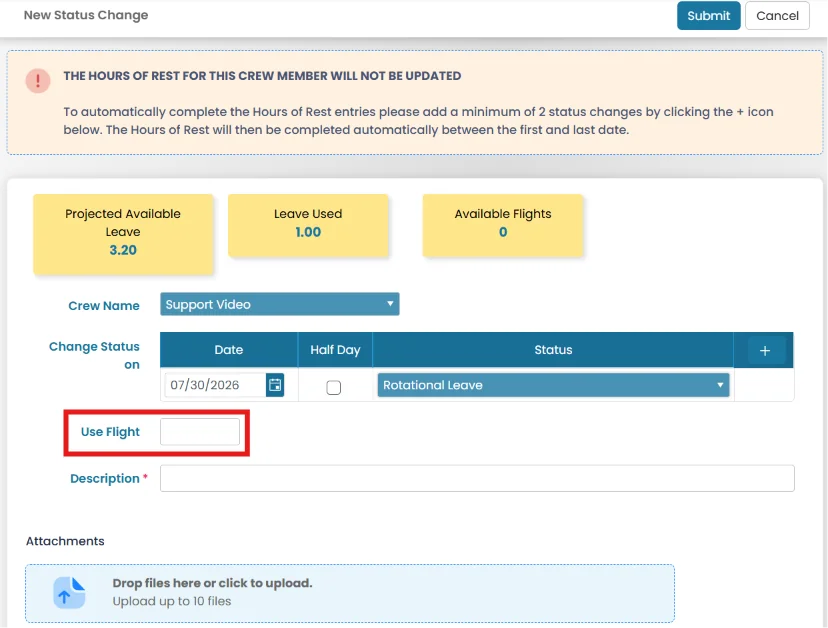
Add Flights Used Option for Single-Line Status Changes Request

FleetSub-Account

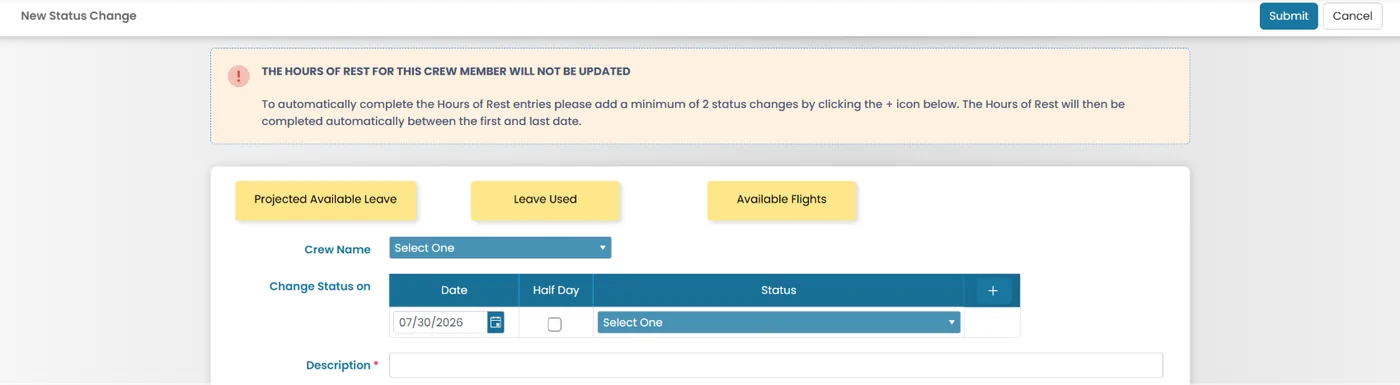
A new Flights Used option has been added when creating a single-line status change. Users can now record and deduct one or more flights directly from the status change, ensuring flight usage is accurately tracked.

Why it matters: This enhancement simplifies crew status management by allowing flight deductions to be recorded during the status change creation process. It reduces manual updates and helps maintain accurate crew travel records.

Related walkthrough: Creating and Editing a Status Change

Video not playing? Watch it on YouTube ↗

Before

Add Flights Used Option for Single-Line Status Changes Request (before)

After

Add Flights Used Option for Single-Line Status Changes Request
How to get there for Sub-Account User Sub-Account Homepage → Crew Planner Module → All Status Changes folder → Click the three dots → New Status Change Navigation path for Fleet User Fleet Homepage → Switch Account → Select the Vessel → Crew Planner module → All Status Changes → Click the three dots → Select New Status Change
UPDATED

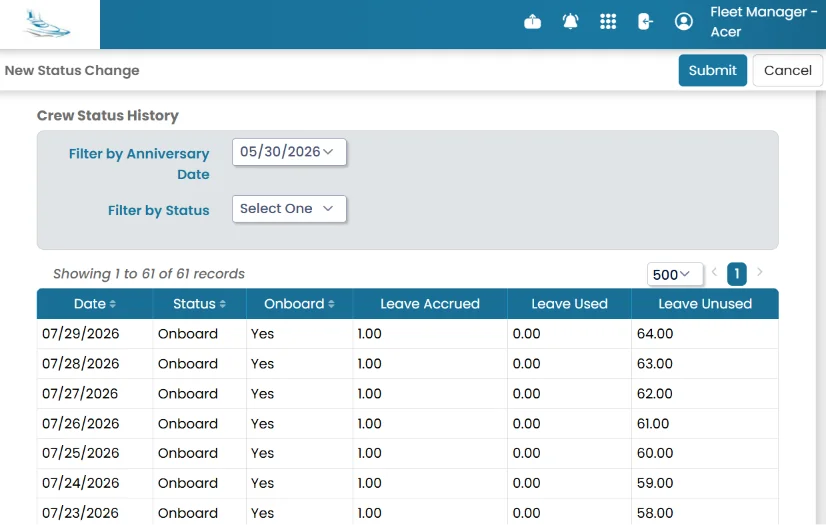
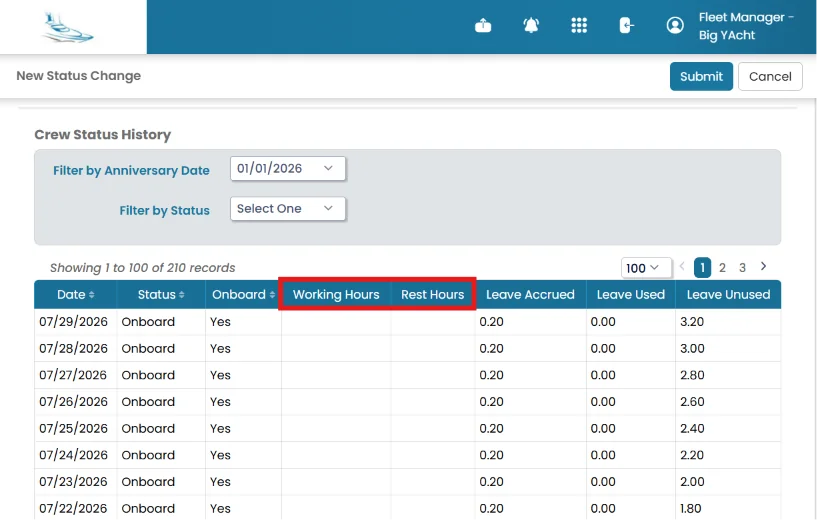
Display Work Hours and Rest Hours History in Status Change Page

FleetSub-AccountCrew

The New Status Change page has been updated to display work hours and rest hours within the Crew Status History table. Users can now view a history of Hours of Rest records alongside leave balances when creating or editing a status change.

Why it matters: This enhancement provides users with better visibility of crew availability, rest compliance, and leave information in one place. It helps users make more informed decisions when updating crew status changes.

Related walkthrough: Creating and Editing a Status Change

Video not playing? Watch it on YouTube ↗

Before

Display Work Hours and Rest Hours History in Status Change Page (before)

After

Display Work Hours and Rest Hours History in Status Change Page
How to get there for Sub-Account User Sub-Account Homepage → Crew Planner Module → All Status Changes folder → Click the three dots → New Status Change Navigation path for Fleet User Fleet Homepage → Switch Account → Select the Vessel → Crew Planner module → All Status Changes → Click the three dots → Select New Status Change Navigation path for Crew User Profile Icon → Select My Leave Planner → Click New Status Change.
UPDATED

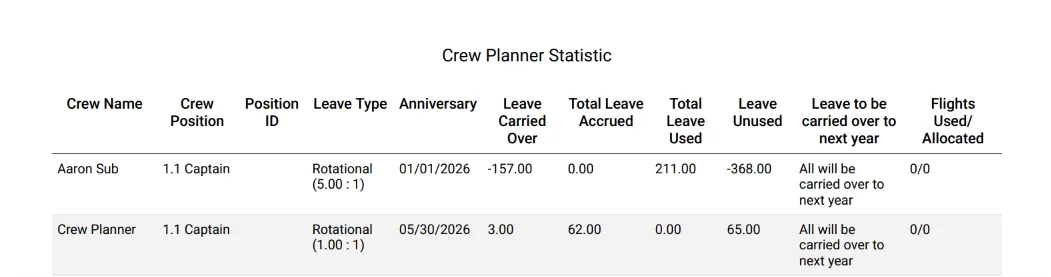
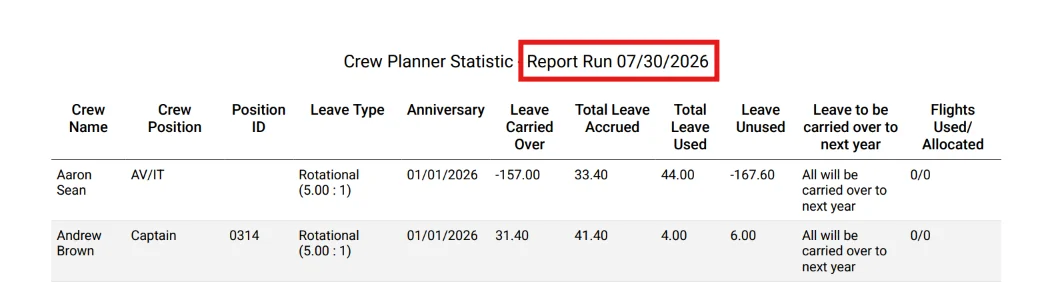
Include Report Date in Crew Planner Statistics Export

FleetSub-Account

The Crew Planner Statistics export now includes the report's effective date in both the PDF title and at the top of the report. This makes it easy to identify when the report was generated.

Why it matters: Including the report date improves record keeping and helps users quickly identify the reporting period when reviewing, sharing, or archiving exported reports.

Before

Include Report Date in Crew Planner Statistics Export (before)

After

Include Report Date in Crew Planner Statistics Export
How to get there Homepage → Crew Planner Module → Reports → System Reports tab → Select Crew Planner Statistics → Click the three dots → Select Export Tools as PDF
UPDATED

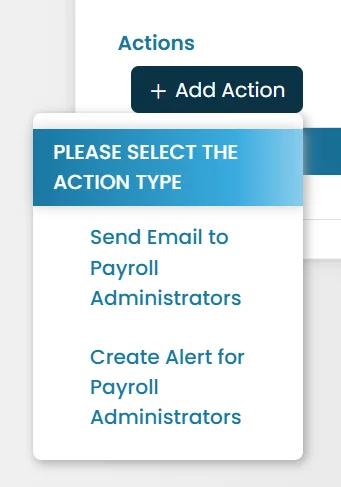
Updated Payroll Notification Actions in Triggers and Automations

Fleet

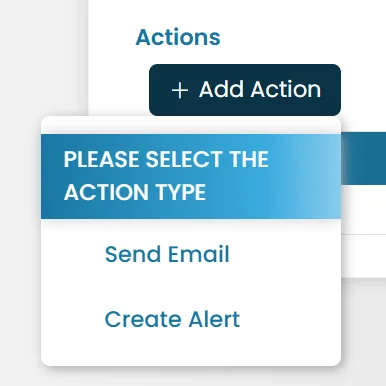
The “Create Alert for Payroll Administrators” and “Send Email to Payroll Administrators” actions have been replaced with the more general “Create Alert” and “Send Email” actions.

Why it matters: This provides more flexibility and control over who receives payroll notifications. It also allows you to use the same alert or email actions for different users and scenarios, rather than limiting them specifically to Payroll Administrators.

Related walkthrough: Payroll Triggers and Automations

Video not playing? Watch it on YouTube ↗

Before

Updated Payroll Notification Actions in Triggers and Automations (before)

After

Updated Payroll Notification Actions in Triggers and Automations
How to get there Fleet Homepage → Payroll Module → Administration → Triggers and Automations → Select New Trigger or New Automation → Click Add Action.

Questions about this release?

Contact support

Have a question about any feature in this release? Open a support ticket and we'll help.

Create Ticket