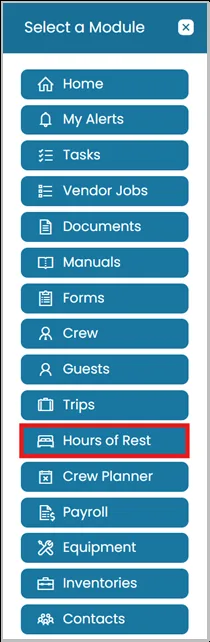
- Click the Modules icon and select Hours of Rest.
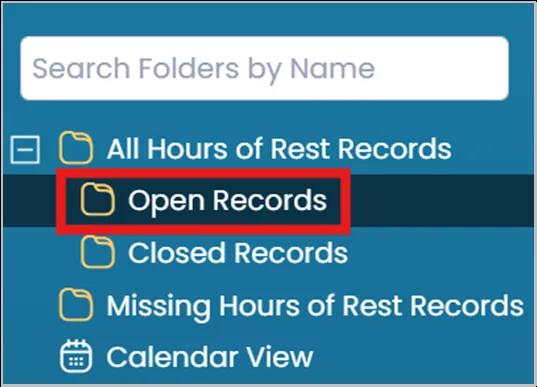
- On the left-hand menu, click on Open Records folder. This will show all records that have not been signed by the Masters/Authorized Person.
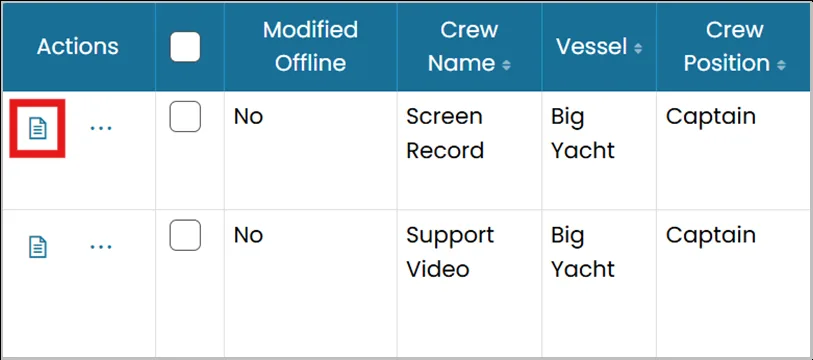
- You can generate a report for a single record by clicking the Generate Hour of Rest Report icon next to the crew member’s name.
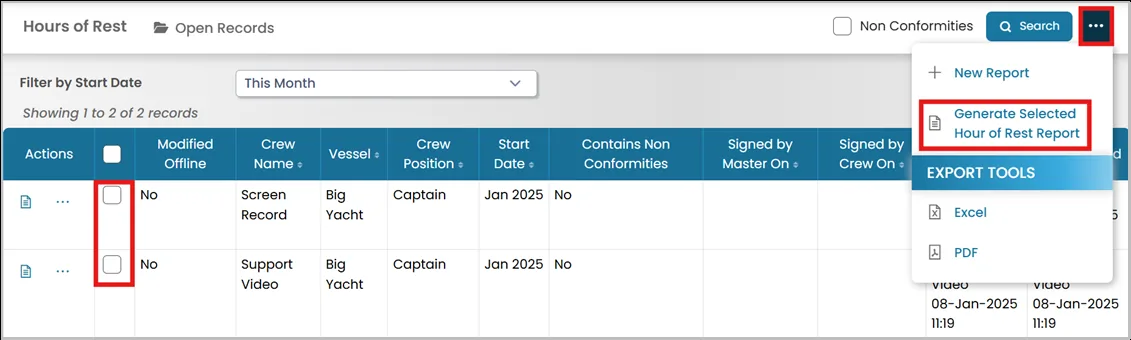
- To generate reports for multiple crew members, check the boxes next to their names. Then, click the three dots in the top-right corner and select Generate Selected Hours of Rest Records.
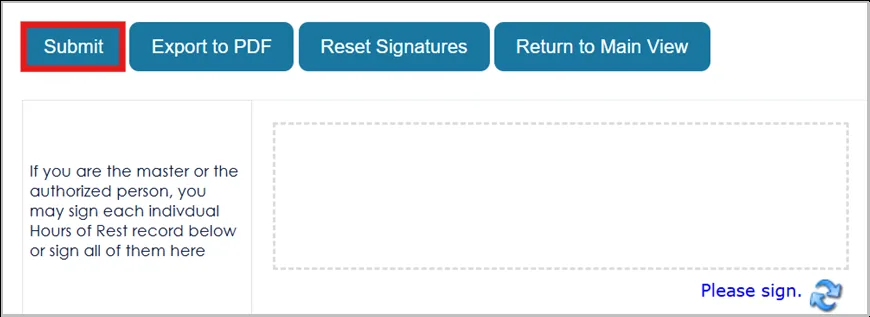
- Review each report individually, then click Sign at the top of the page to countersign all records. Once completed, click Submit.
Was this article helpful?
Still need help?
Our support team will pick it up as a support ticket and reply by email.