
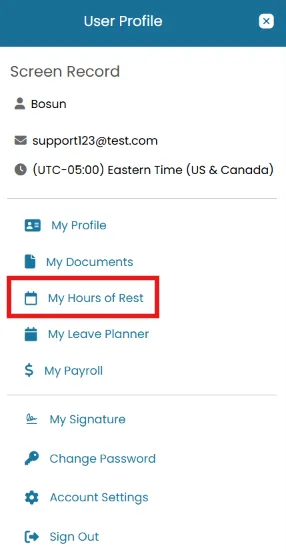
- Click the User Profile icon and select My Hours of Rest.
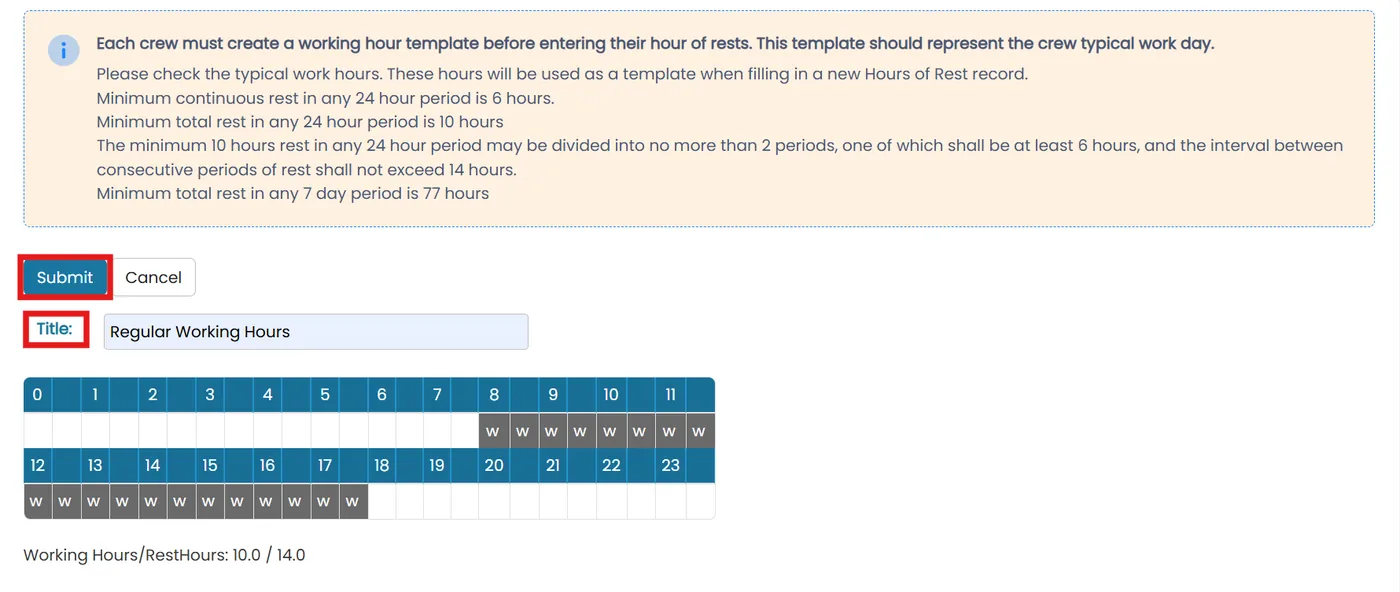
- On the top right corner of the screen, click Manage Templates.
- Enter a title, then tap or click the hour boxes to mark the working hours (the selected hours will turn grey). Once you've finished, click Submit.

Log a day
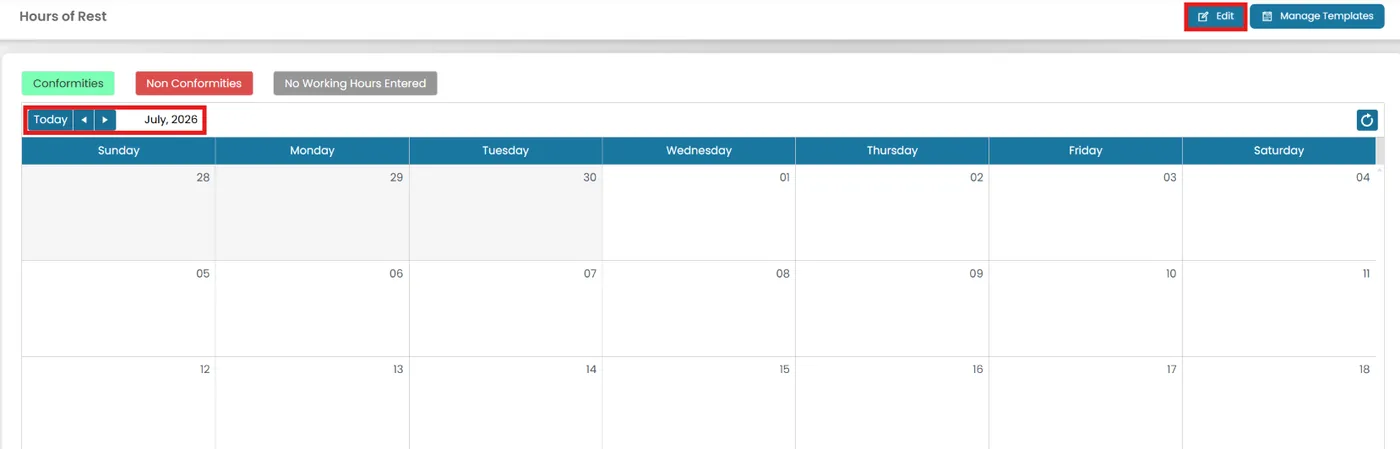
- From My Hours of Rest, select the appropriate month, then click the day you want to log. Alternatively, click the Edit icon in the top-right corner.
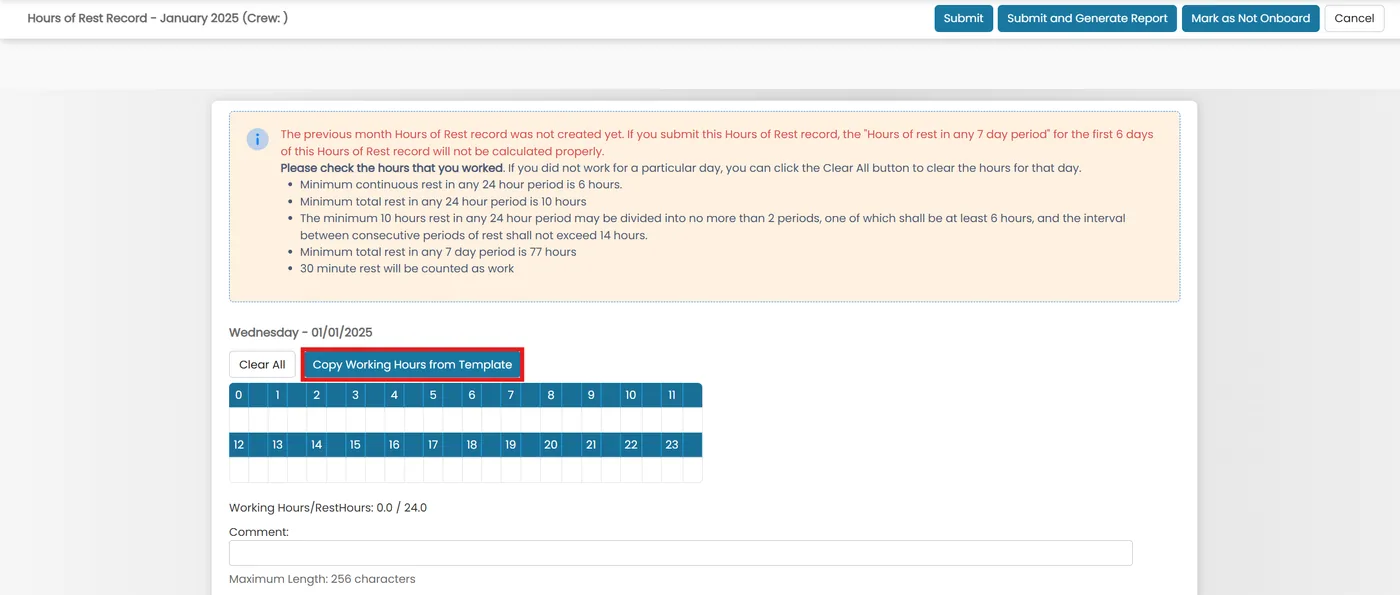
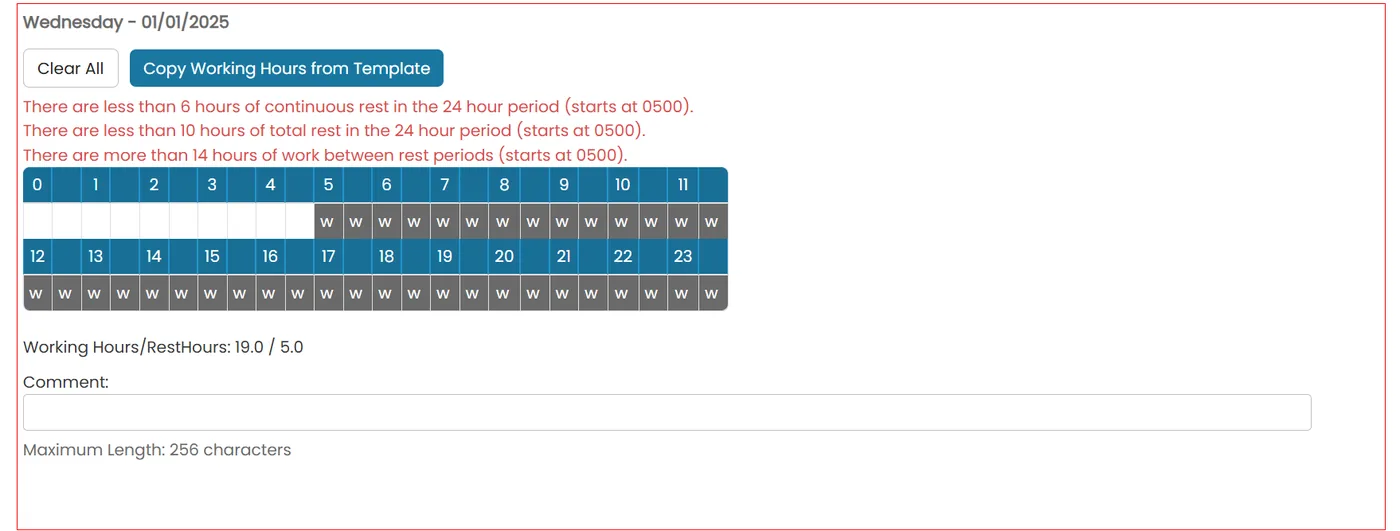
- Click Copy Working Hours from Template to fill in your typical pattern, or click and drag across hours to mark them manually.
Resolve a non-conformity
- If the hours you entered break a rest rule, the day is highlighted in red. Enter a Comment explaining why (e.g. "Emergency navigation during storm").
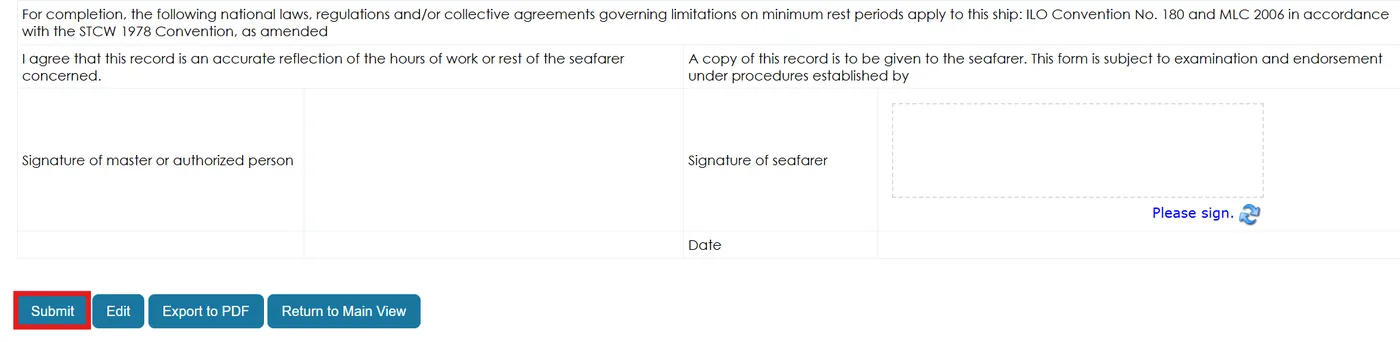
Once done, click Submit again.
Generate and sign the monthly report
- Once the month is complete, click Submit and Generate Report on the top right corner.
- Review the report on-screen.
- Sign the document and click Submit.

Was this article helpful?
Still need help?
Our support team will pick it up as a support ticket and reply by email.