Create Status Change Request
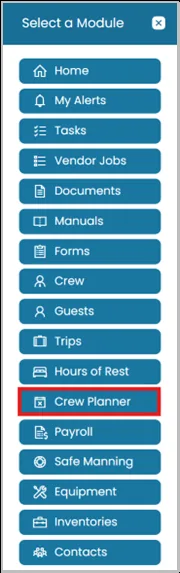
- Click on Modules icon and then select Crew Planner.
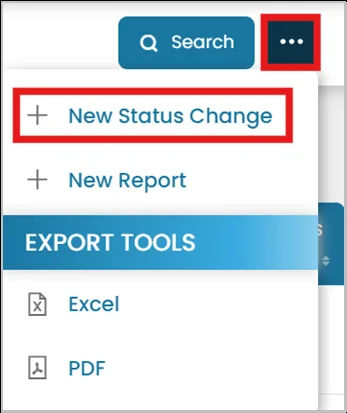
- In the top right corner, click the three dots and select New Status Change.
- Select the crew member whose status needs to be changed.
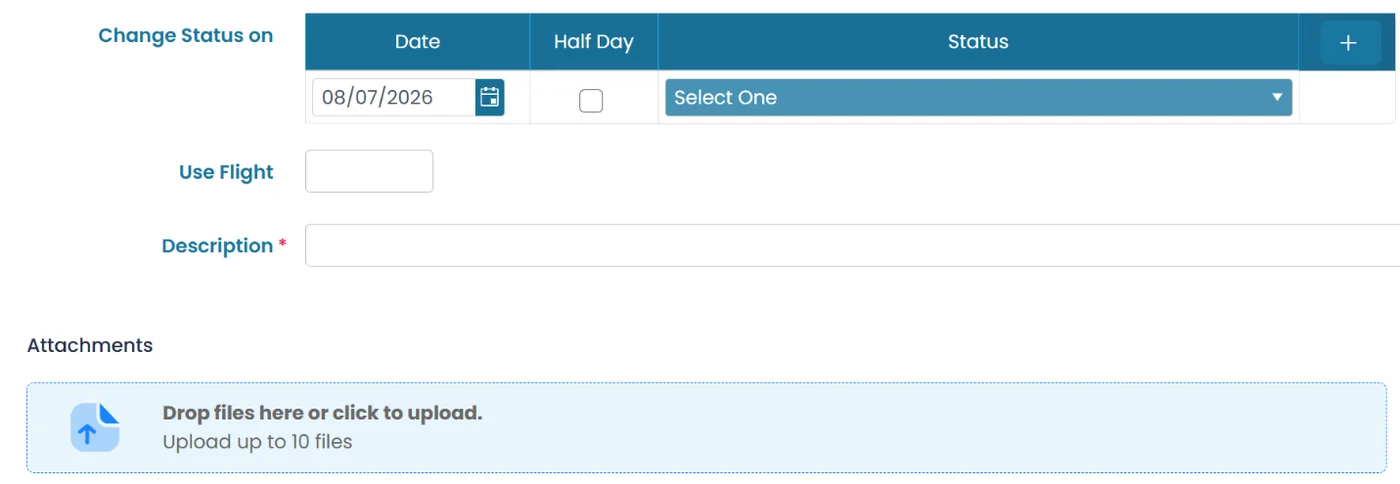
- Enter the required information regarding the status change in the fields provided.
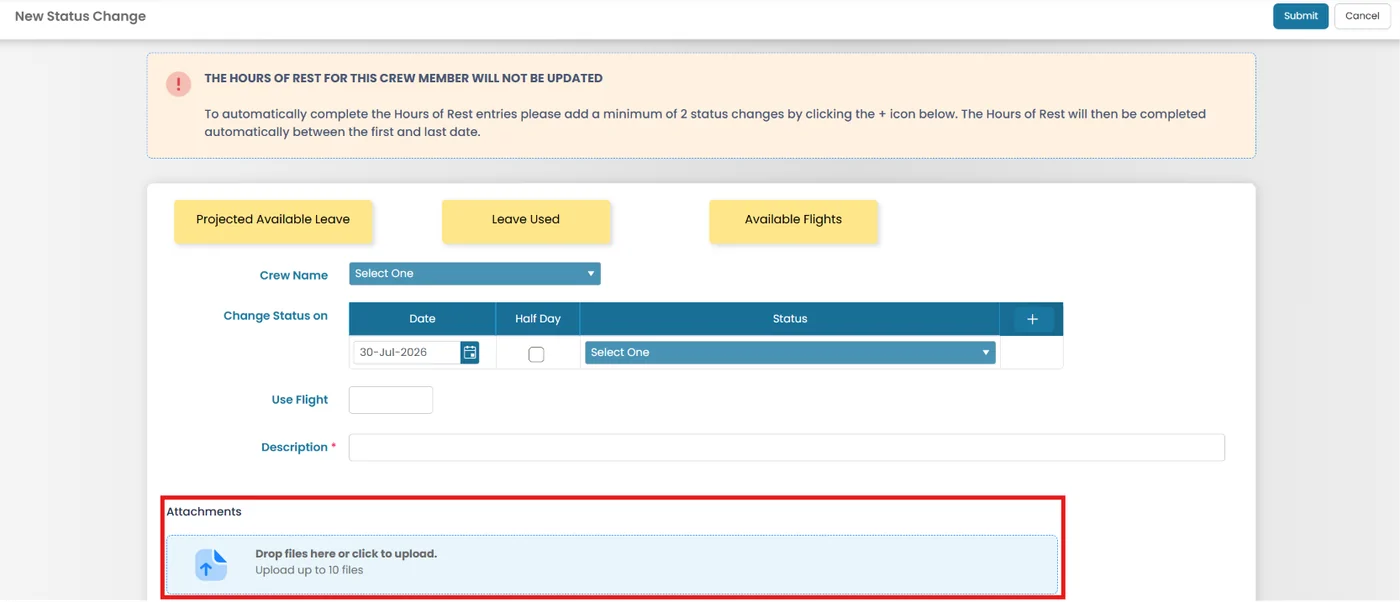
- Change Status on — a table where you set the date the status change takes effect, check Half Day if it's only for part of the day, and select the Status from the dropdown. Click + to add another row for multiple date/status changes.
- Use Flight — enter a flight number/reference if the status change is tied to a flight.
- Description (required) — explain the reason for the request.
- Attachments — drag and drop or click to upload supporting files (up to 10), such as flight tickets or other documents.

Note:
To automatically complete the Hours of Rest entries, add a minimum of two status changes. Ensure the final status change includes the crew member's estimated onboard date.
If the crew member is Not on Board for an entire month, the HOR report shows "Not Applicable" for that month.
For partial-month leave, the HOR will reflect only the specific leave dates entered. The crew member will still need to manually sign the HOR records.

Edit Status Change Request
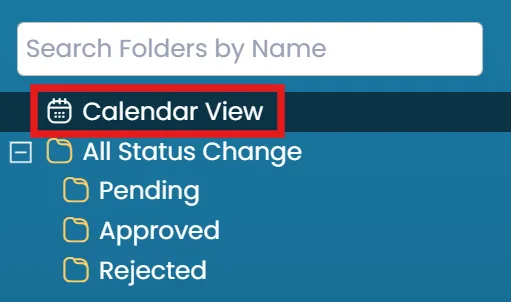
- From the Crew Planner homepage, select Calendar View from the left-hand side of the screen.
- Select the box next to the crew member's name with an existing status change request. A popup will appear, letting you update dates and statuses.
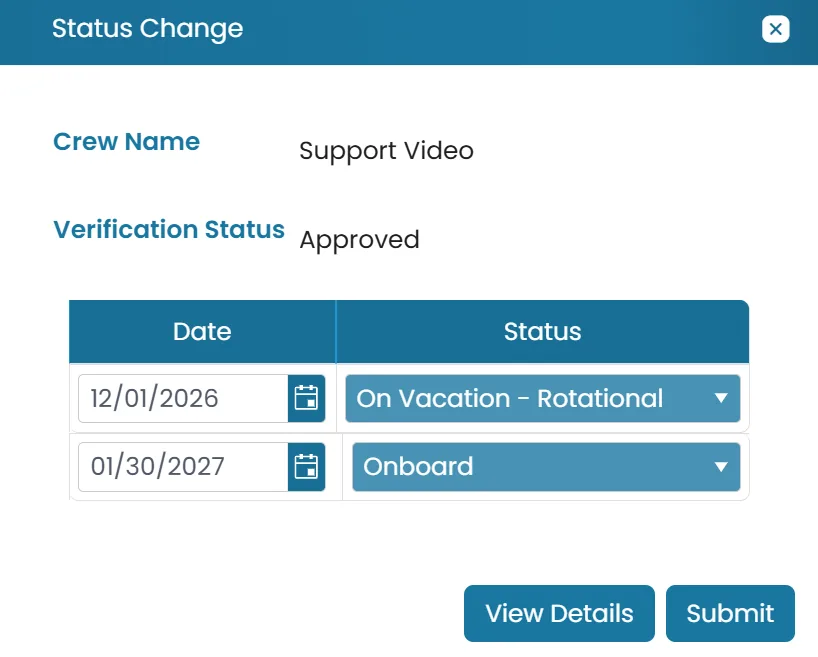
Note: If you do not have approval rights, the request will return to Pending status and will need to be approved again by an authorized user.
New in Release 2026-08-15
Adding Attachments for Status Change Requests in Crew Planner
Users can now add attachments while creating or editing a status change. Previously, attachments could only be added after the status change had been created through a separate page.
Why: This enhancement streamlines the status change process by allowing supporting documents to be uploaded at the same time the status change is created or edited. It reduces extra steps, improves efficiency, and helps ensure all relevant documentation is captured in one place.
Where to find it: for Sub-Account User Sub-Account Homepage → Crew Planner Module → All Status Changes folder → Click the three dots → New Status Change Navigation path for Fleet User Fleet Homepage → Switch Account → Select the Vessel → Crew Planner module → All Status Changes → Click the three dots → Select New Status Change Navigation path for Crew User Profile Icon → Select My Leave Planner → Click New Status Change.
See Release Notes for August 15, 2026 for full details.
Still need help?
Our support team will pick it up as a support ticket and reply by email.