Change your password
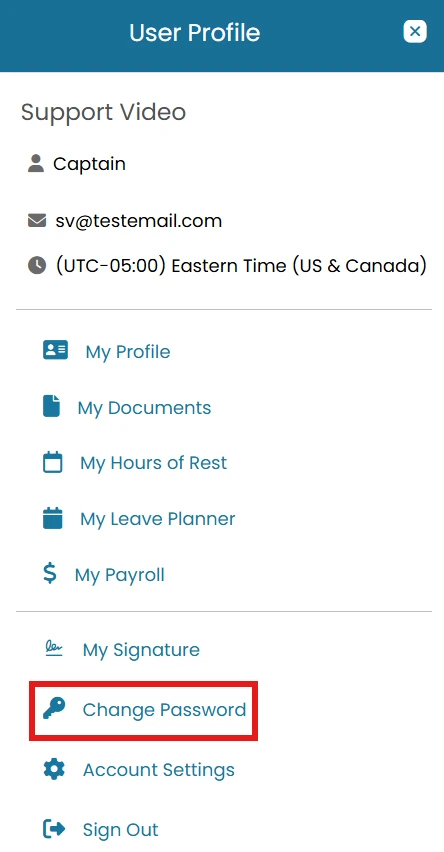
- Click the User Profile icon and select Change Password.
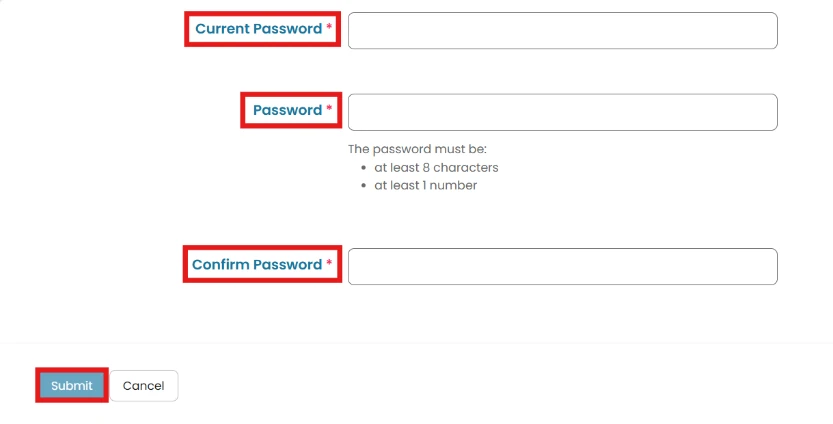
- Enter your Current Password.
Enter your desired New Password.
Confirm Password and click Submit.
If you've forgotten your current password, use the Forgot Password — Website flow below, or the Forgot Password — MMV App flow further down this page.
Forgot Password — Website
If you've forgotten your password and you're using MMV in a web browser, follow this flow. The website sends a Reset Your Password link to your email; clicking the link takes you back to the site to complete the reset.
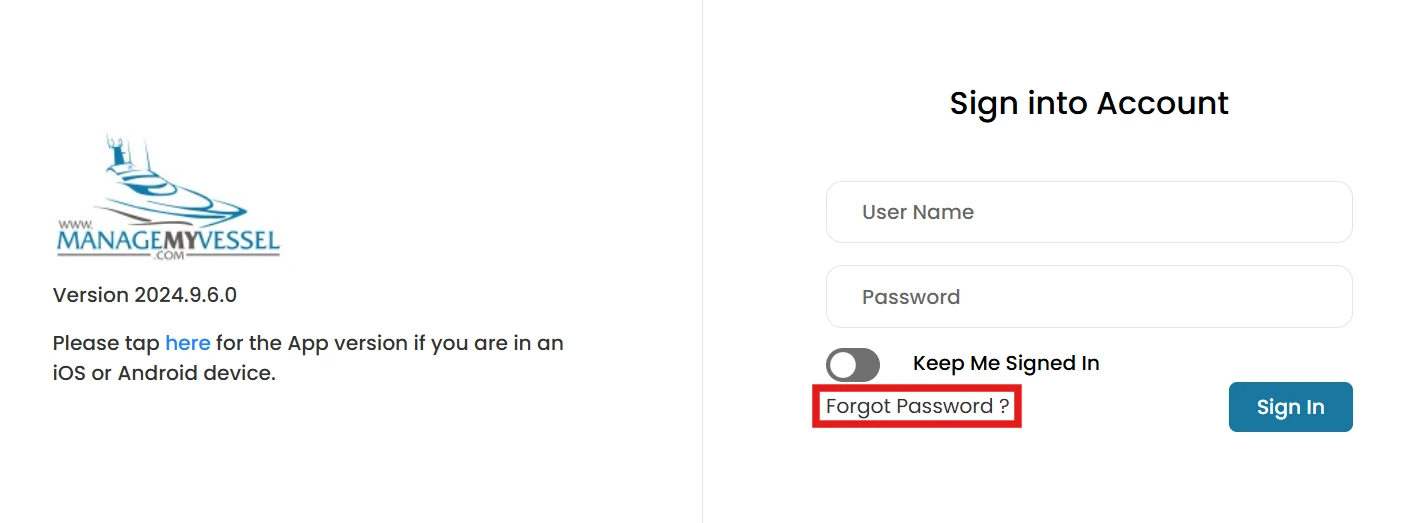
- On the login page, click Forgot Password?
- Pick the identification option that matches what you remember.
Option A:
Enter your Username and Click Submit.
Option B:
Enter your first name, last name, and the vessel you are associated with, then click Submit.
Option C:
Enter your email and click Submit.
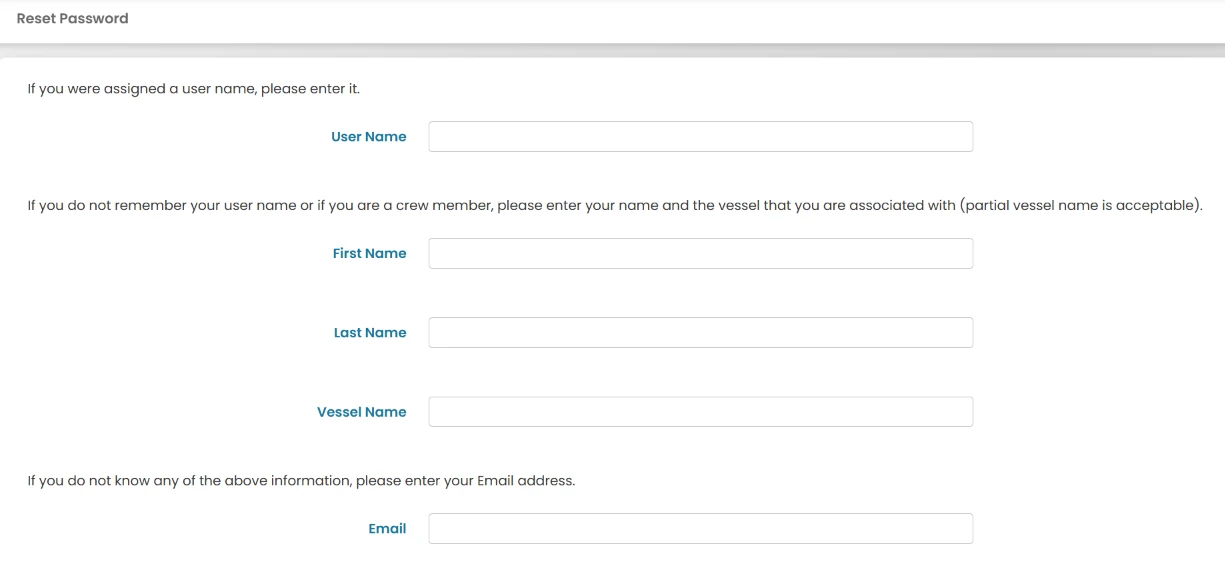
- After selecting one of the options above, you will also need to complete the Security Code as an additional security verification.
- Once you've entered one of the required information and completed the security code, click Submit.
- You will receive an authentication email with instructions to reset your password.

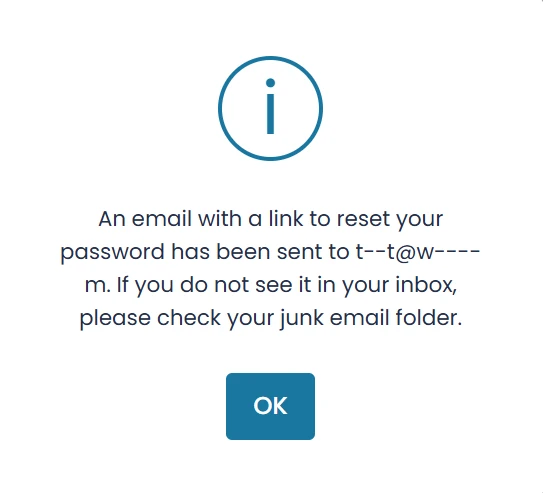
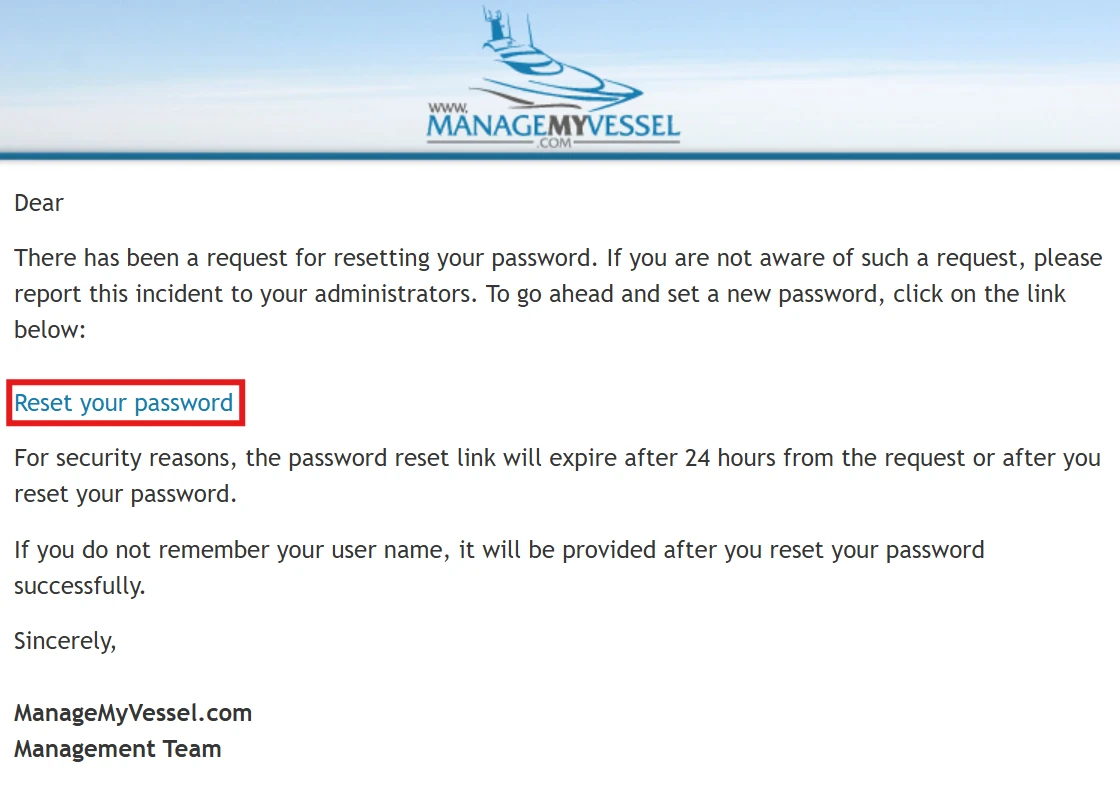
Click the reset link in your email
- Check your inbox for an email from ManageMyVessel — if it's not there, check junk/spam.
Click Reset Your Password in the email.
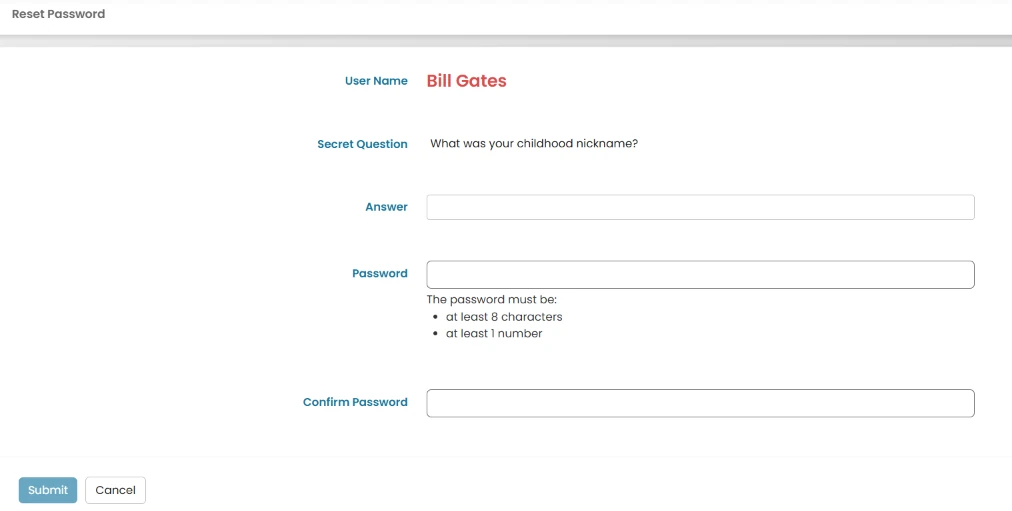
- You’ll be directed to a screen where you’ll need to answer the security question and set a new password.
Forgot Password — MMV App
If you've forgotten your password and you're using the MMV app, follow this flow. The app sends an authentication Key to your email; you enter that key in the app to continue the reset.
- On the app login screen, tap Forgot Password?
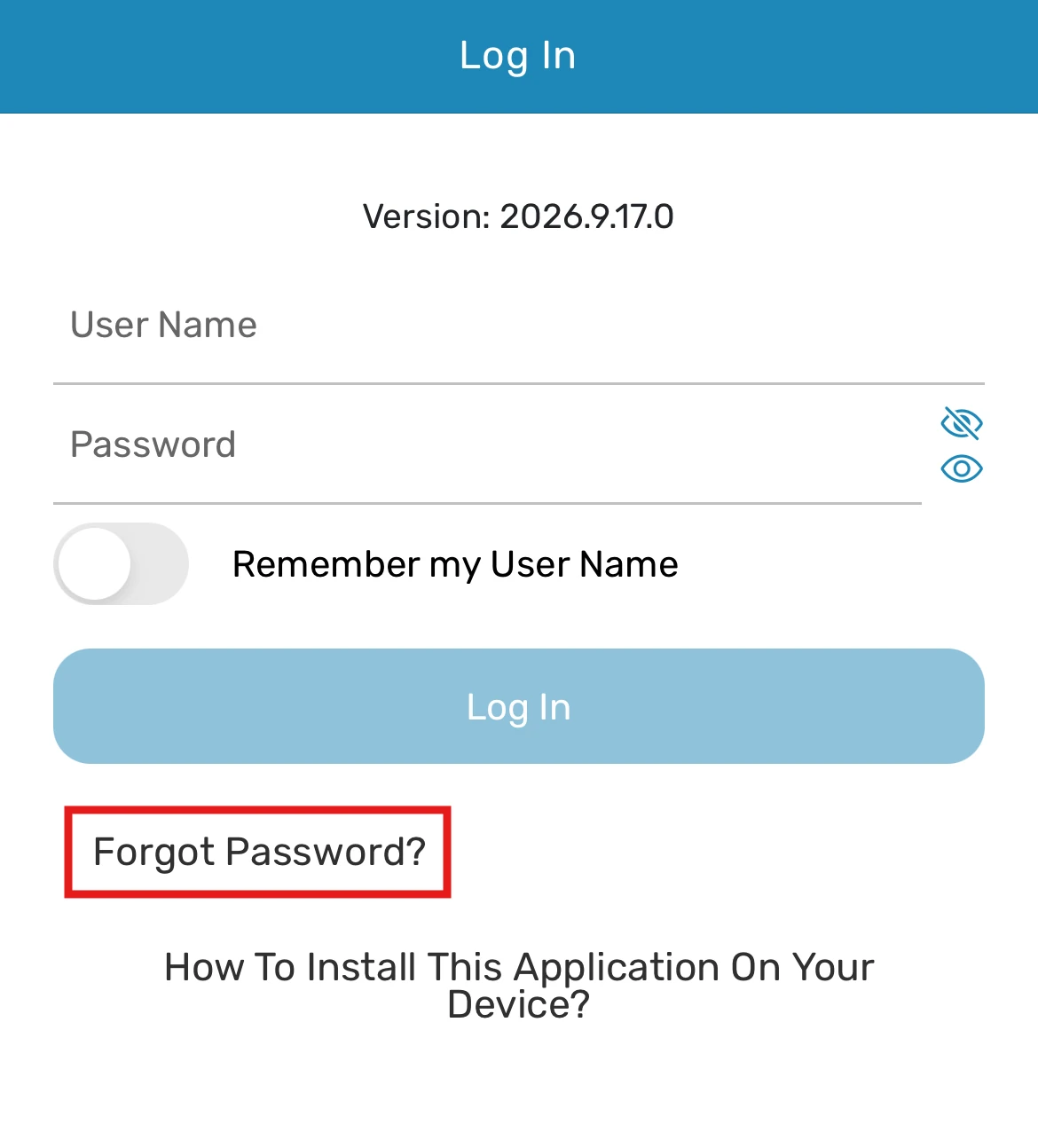
- Pick the identification option that matches what you remember: Username, or First Name / Last Name / Vessel Name, or Email.
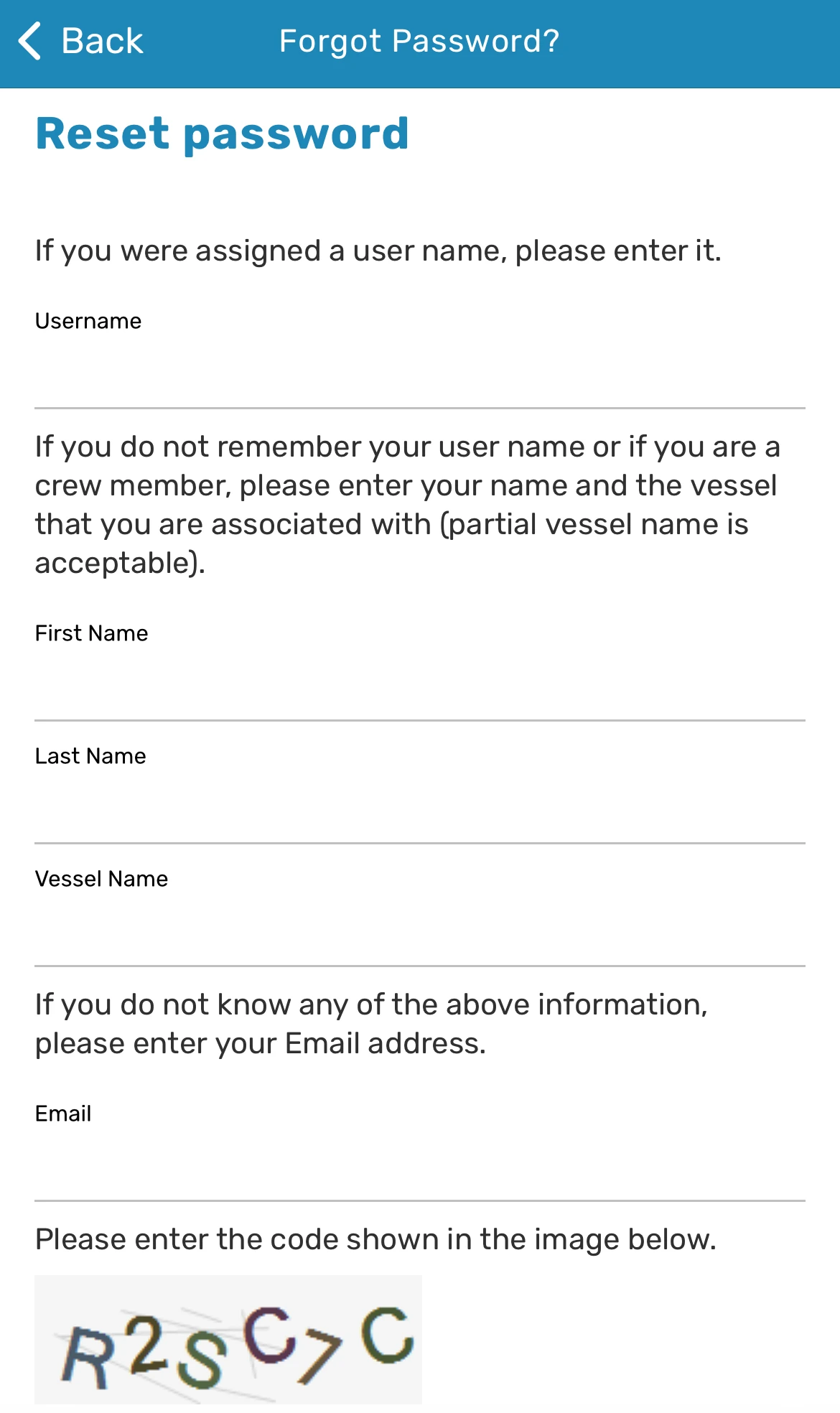
- After selecting one of the options above, you will also need to complete the Security Code as an additional security verification.
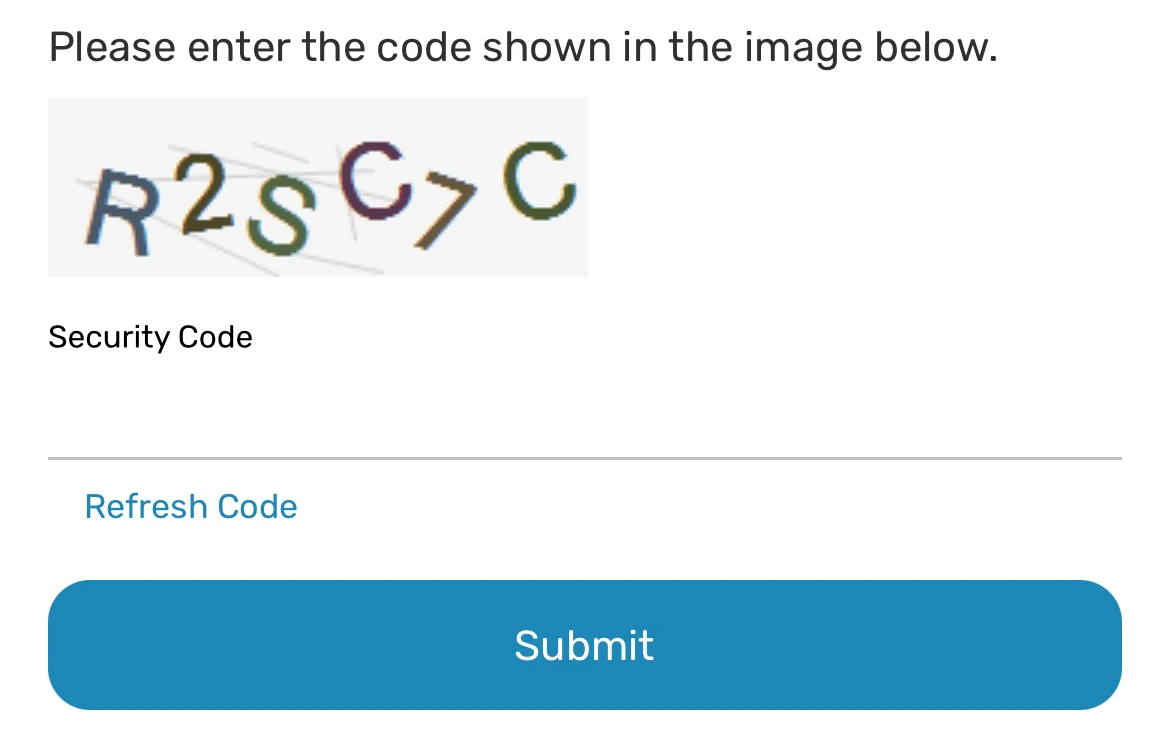
- Once you've entered one of the required information and completed the security code, click Submit.
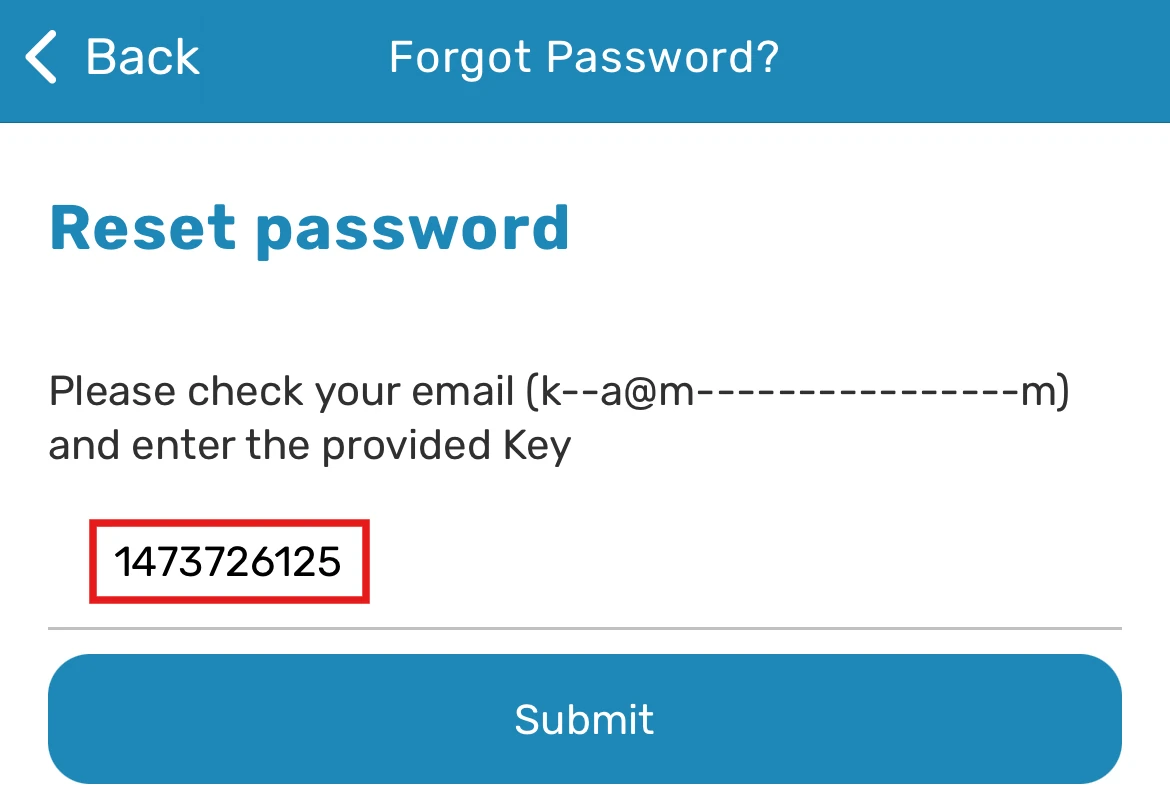
- Check your email for a message from ManageMyVessel containing an authentication Key.
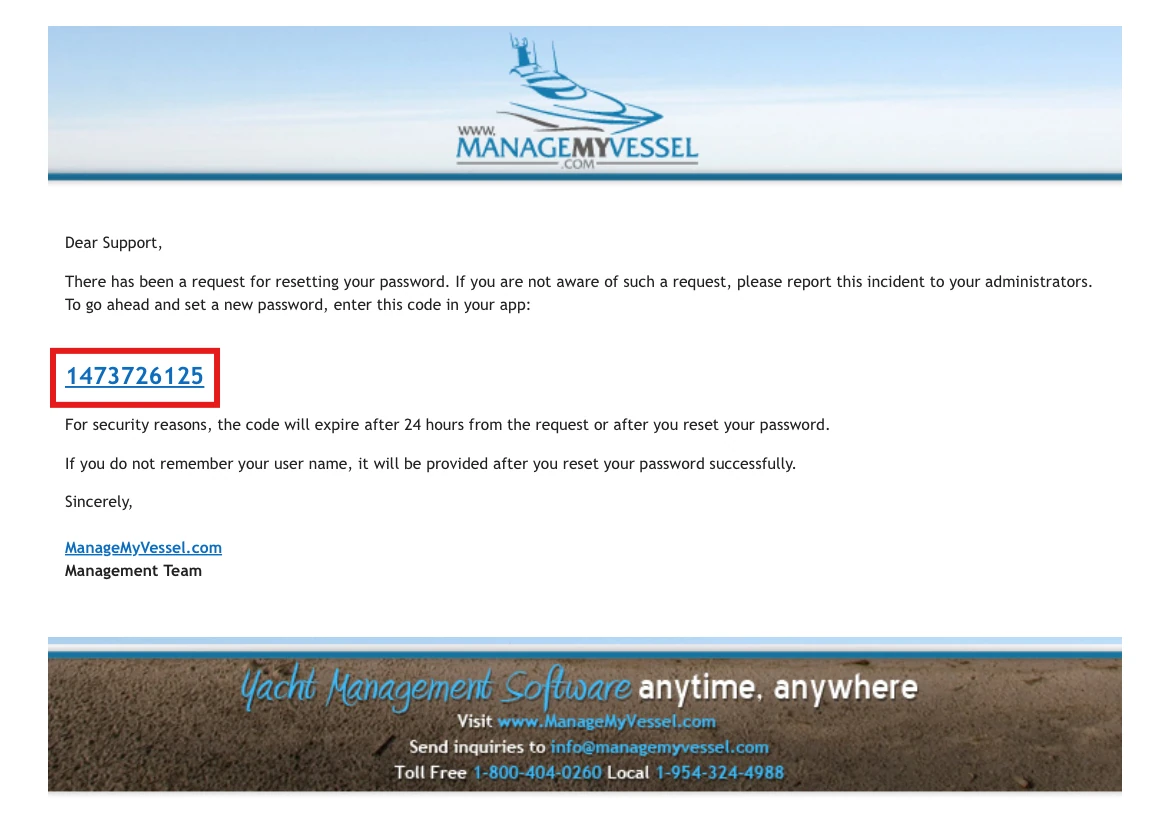
- Enter the provided key and click Submit.
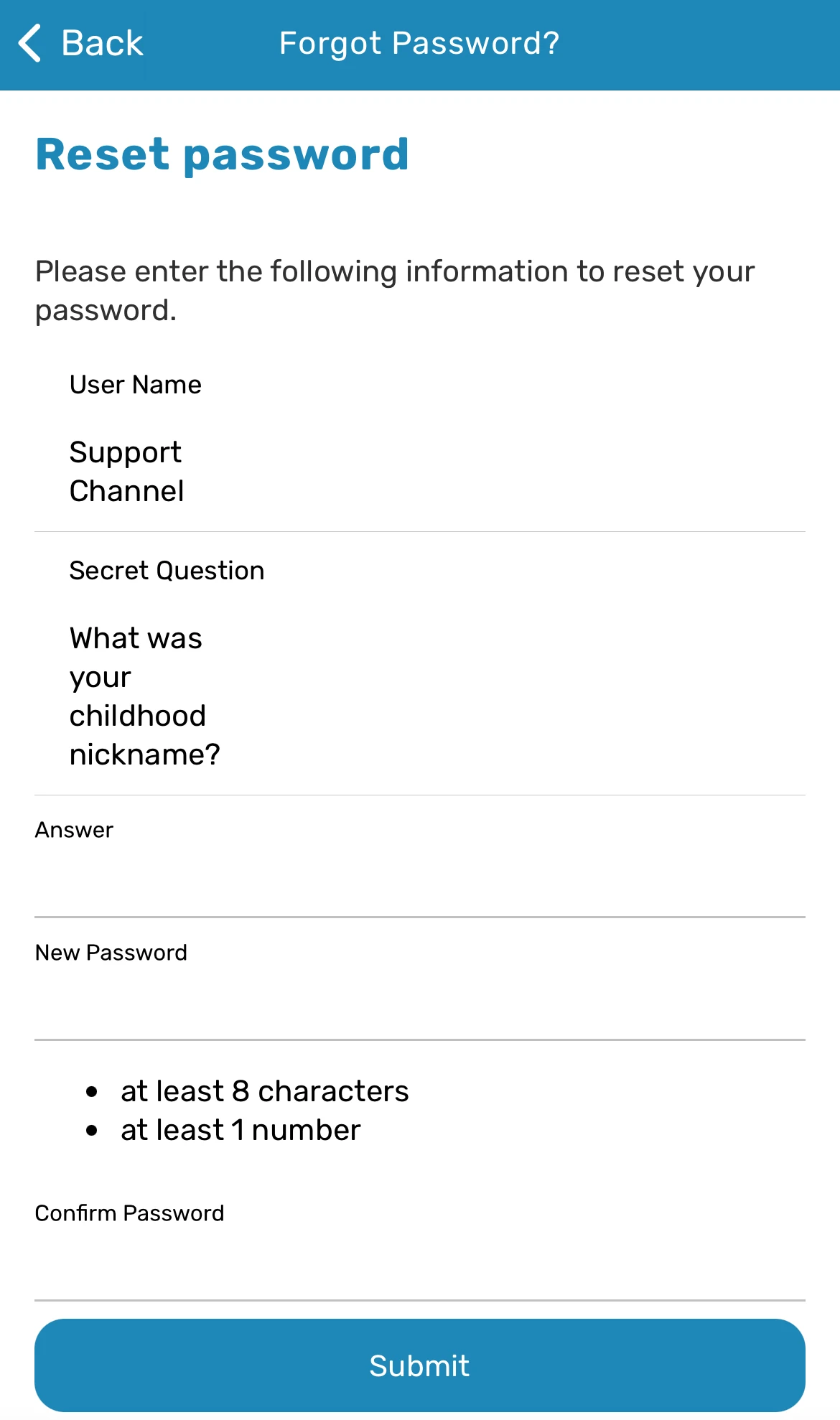
- You'll be directed to a screen where you'll need to answer the secret question and set a new password.
Still need help?
Our support team will pick it up as a support ticket and reply by email.