Video Tutorial Coming Soon
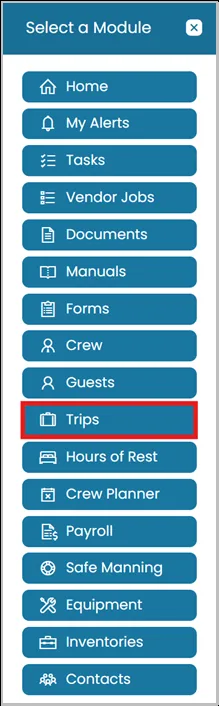
- Click the Modules icon and select Trips.
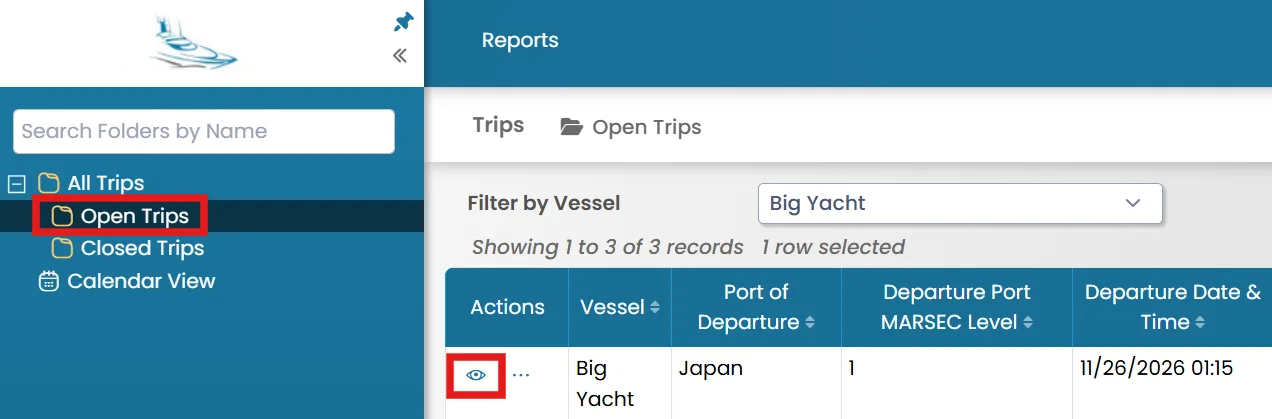
- Select the folder from the left-hand side where you want to create a form, then click the View icon next to the trip.
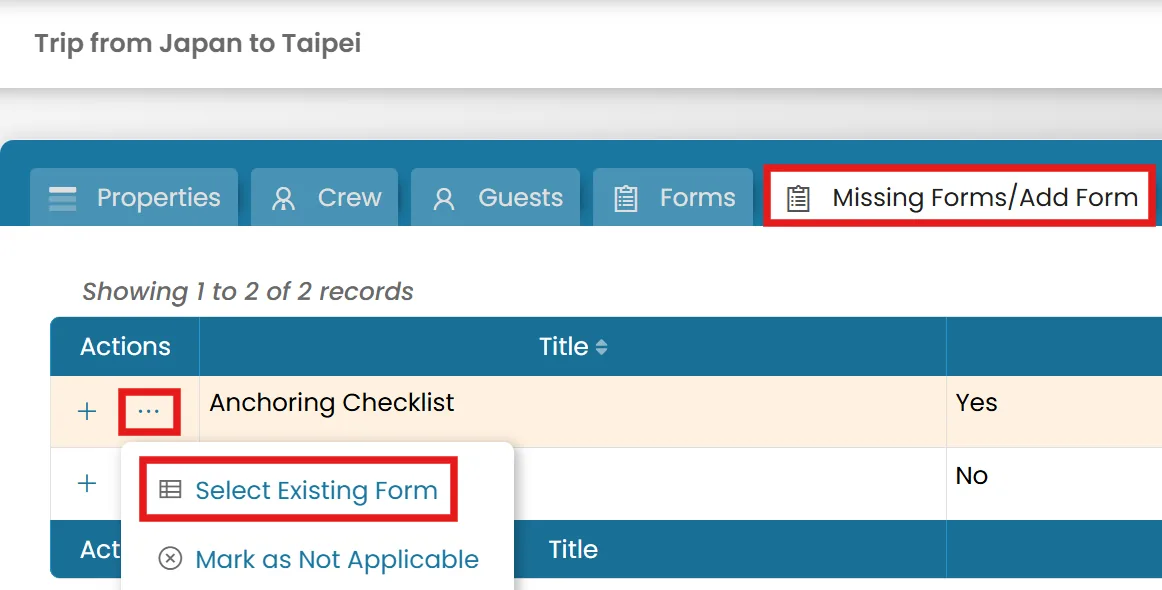
- Go to Missing Forms/Add Form tab, click the three dots next to the form, and Select Existing Form.
- Once the form has been created, it will appear in the Forms tab, where you can view and edit it as needed.
- If a form is not required for the current trip, you can select Mark as Not Applicable, provided the form is not required. The form will then be moved to the Not Applicable Forms tab.
Was this article helpful?
Still need help?
Our support team will pick it up as a support ticket and reply by email.