
Video Tutorial Coming Soon
Held Payments should be used when a crew member's payment amount has not yet been finalized. This process allows the payment to be separated from the regular payroll, reviewed, adjusted, and approved before funding.
Create a Held Payment
- From the Sub-Account homepage, click the Modules menu and select Payroll.
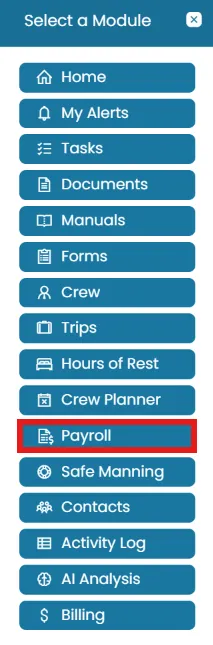
- The Payroll landing page displays the payroll report for the current month.
- Click the three-dot menu next to the relevant crew member and select Create Held Payment.
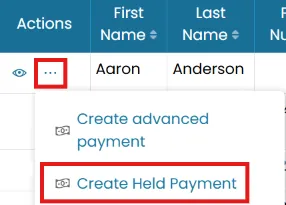
- Enter a comment explaining why the payment is being placed on hold, then click Submit.
Review and Approve the Held Payment
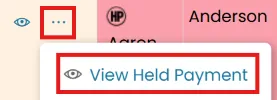
- From the Summary tab, click the three-dot menu next to the relevant crew member and select View Held Payment.
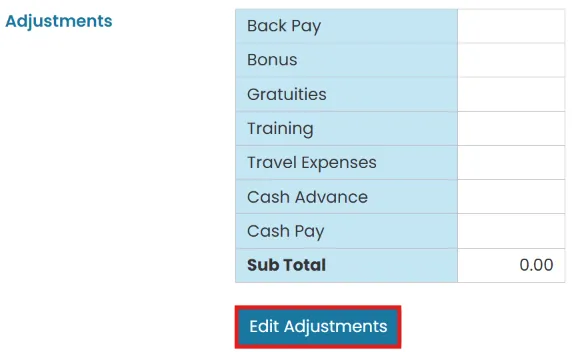
- Click Edit Adjustments to modify the payment adjustments. Enter the required changes and click Submit.
- When the payment is ready for review, click Submit for Approval. If you have the necessary permissions, you can Approve the payment directly.
- Enter a comment and click Submit.

View Held Payment Reports
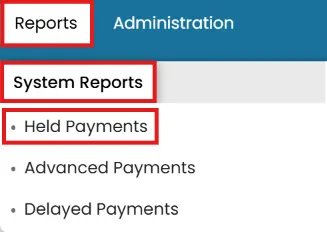
- To view all crew members with payments currently on hold, go to the Reports menu, System Reports tab and select Held Payments.
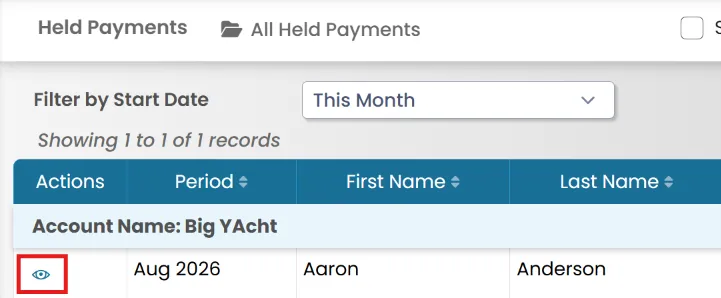
- Users can also edit payment adjustments directly from the Held Payments Report as needed.
- Users can also change the status to Submit for Approval or Approve from this view, provided they have the necessary permissions.
Was this article helpful?
Still need help?
Our support team will pick it up as a support ticket and reply by email.