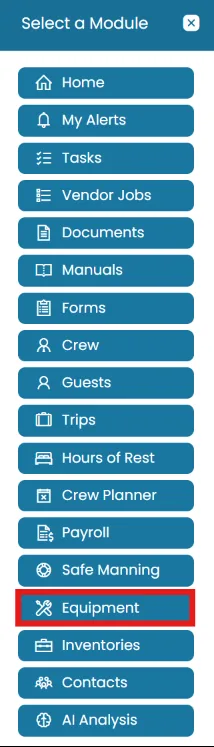
- Click the Modules icon and select Equipment.
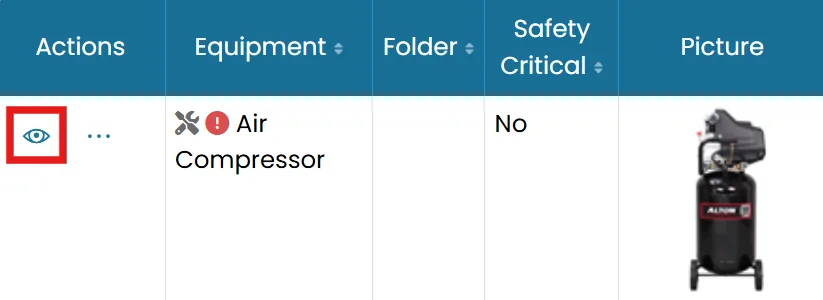
- Find the equipment you want to work with and click the View icon.
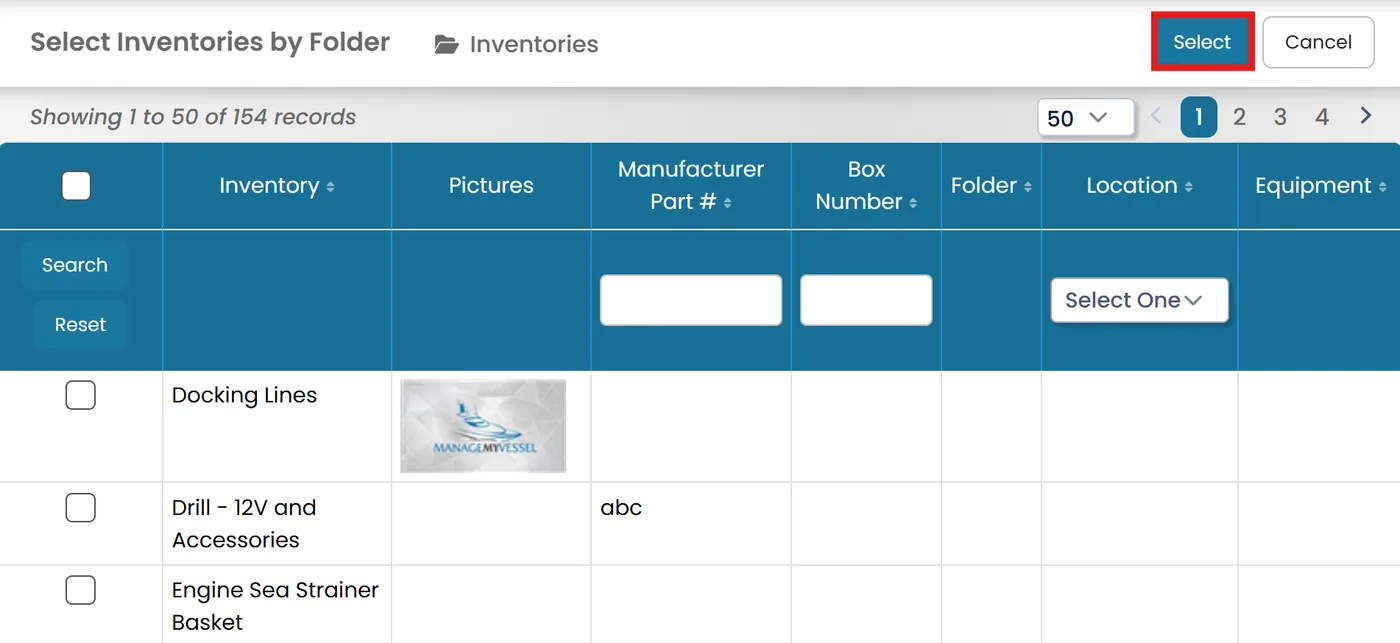
- On the Inventories tab, if the inventory item exists, click Select Existing Inventories.
- Check the box next to the item and click Select.
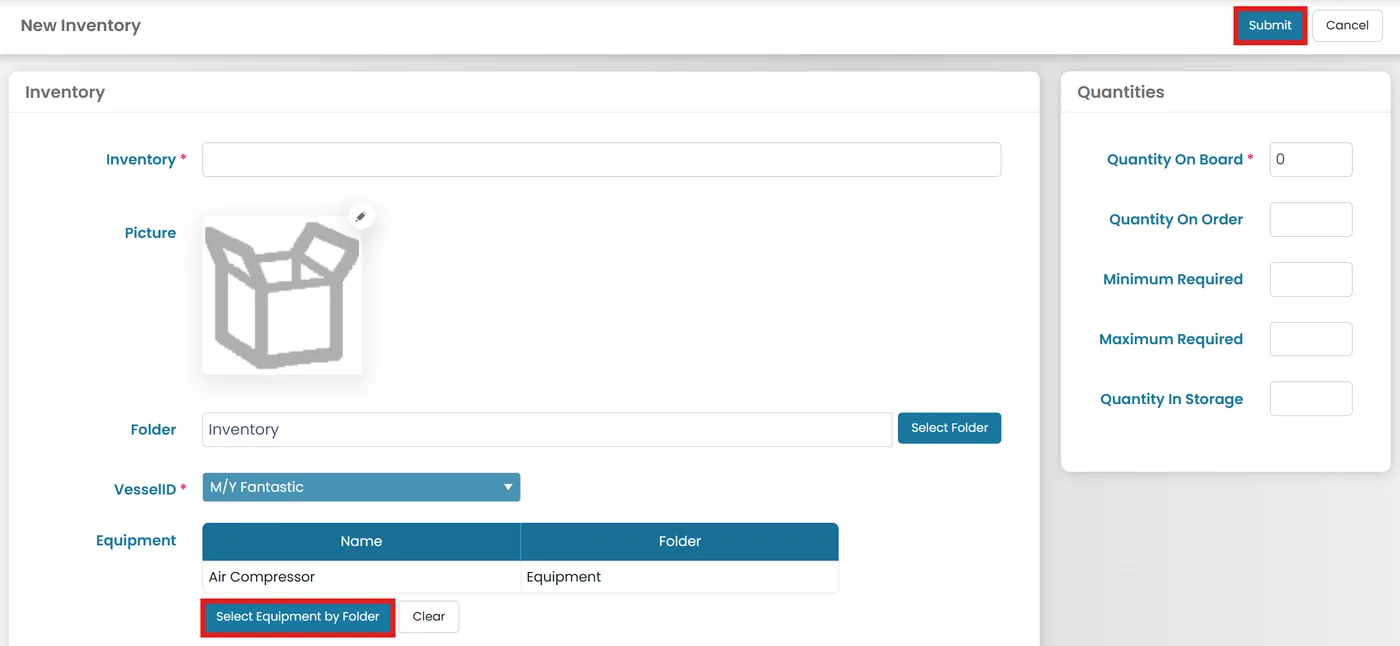
- If the inventory doesn’t exist, click New Inventory to create a new one.
- Name the inventory and link it to the correct equipment.


Enter other necessary information and update inventory quantities as needed. Once all information is filled out, click Submit.
Was this article helpful?
Still need help?
Our support team will pick it up as a support ticket and reply by email.