Adding Attachments: https://www.youtube.com/watch?v=UgruzGKRrcI
Method 1
- Click Modules icon and select Payroll.
- Select a payroll report with an open status.
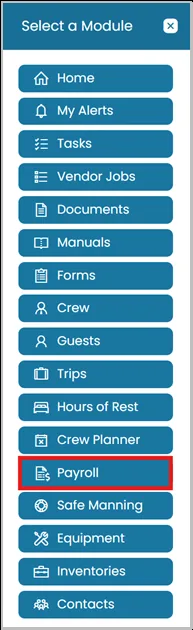
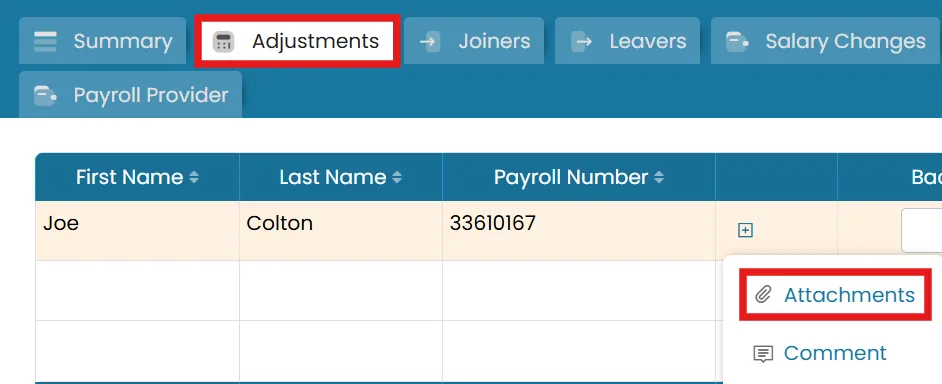
Then, go to the Adjustments tab and select the crew member.
Click the Add icon to upload an attachment.
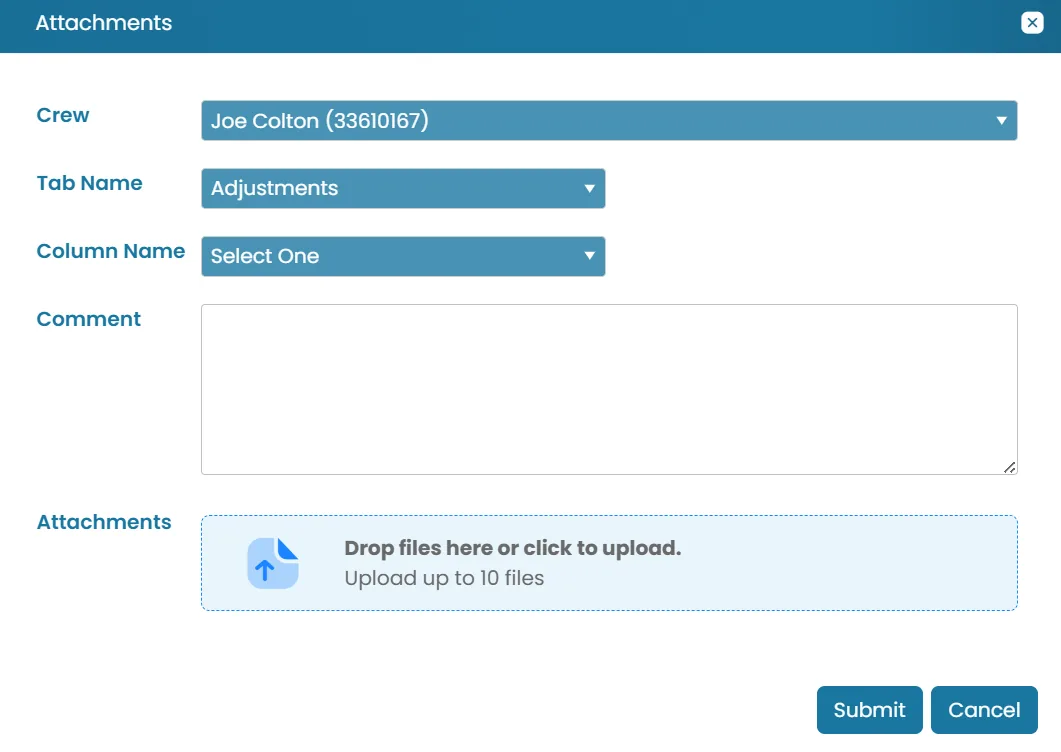
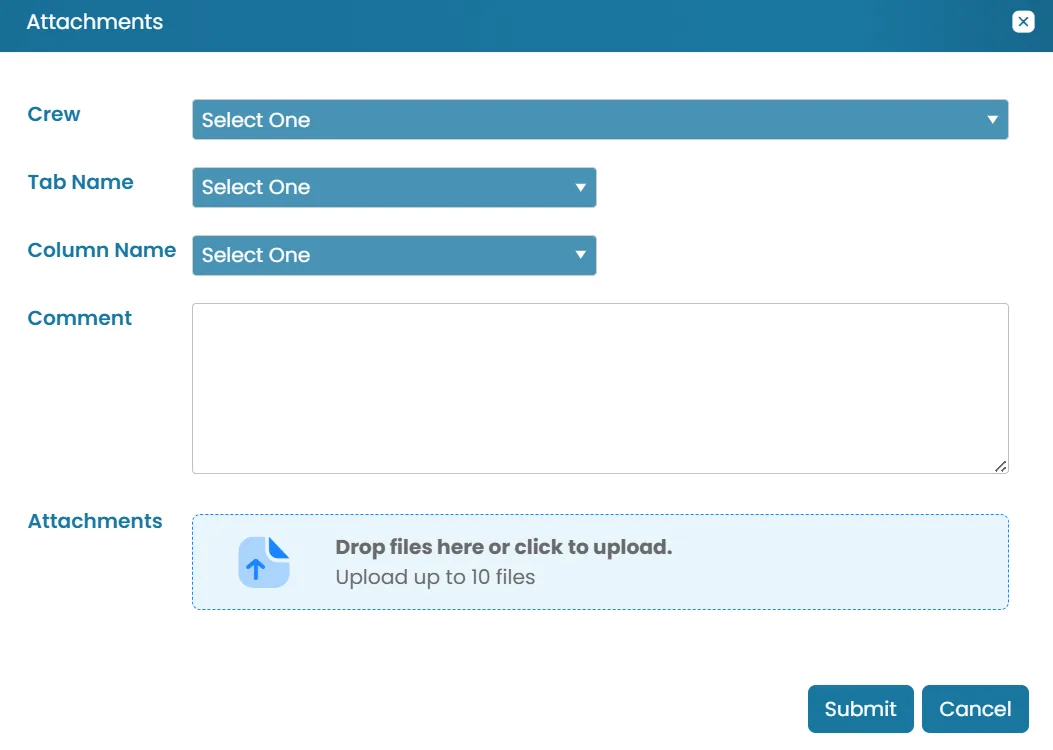
- A pop-up window will appear to gather the details for the attachment.
- Crew — select which crew member the adjustment applies to.
- Tab Name — which payroll tab this attachment belongs.
- Column Name — the type of adjustment (Back Pay, Bonus, Gratuities, Training, Travel Expenses, Cash Advance, etc.).
- Comment — add a comment explaining the reason for the attachment.
- Attachments — drag and drop or click to upload supporting files (up to 10).
Method 2
- Select a payroll report with an open status.
Then, go to the Attachments & Comment tab.
On the top right corner click the Add Attachment button.

- A pop-up window will appear to gather the details for the attachment.
- Crew — select which crew member the adjustment applies to.
- Tab Name — which payroll tab this attachment belongs.
- Column Name — the type of adjustment (Back Pay, Bonus, Gratuities, Training, Travel Expenses, Cash Advance, etc.).
- Comment — add a comment explaining the reason for the attachment.
- Attachments — drag and drop or click to upload supporting files (up to 10).
Was this article helpful?
Still need help?
Our support team will pick it up as a support ticket and reply by email.