
Use this when you know your current password and just want to update it. If you've forgotten your password, use the Forgot Password flow instead.
Working on the Website
- Click the User Profile icon and select Change Password.
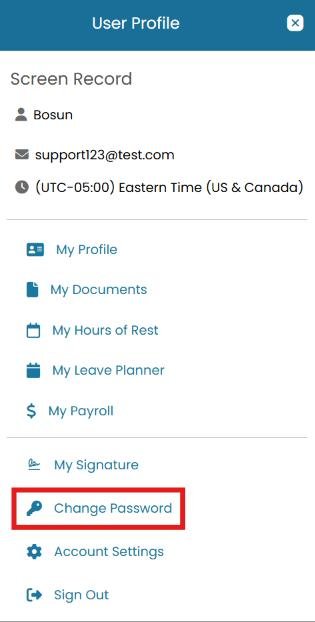
User Profile menu with Change Password highlighted - Enter your Current Password. Enter your desired New Password. Confirm Password and click Submit.
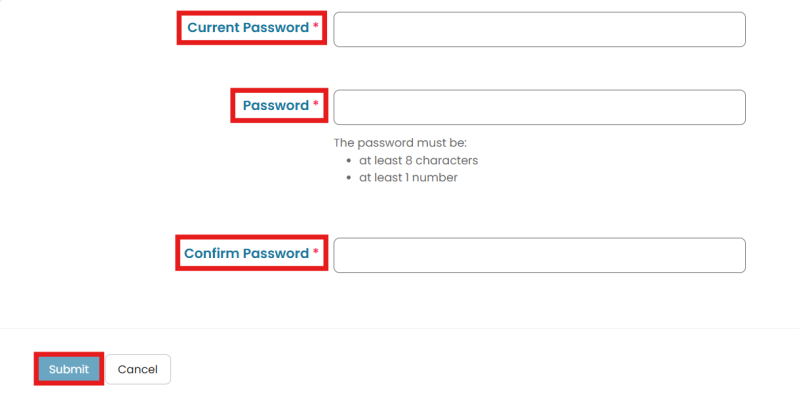
Change Password form with Current Password, Password, Confirm Password fields and Submit button
Working on the MMV App
- Click the menu icon (three horizontal lines) in the top-left corner, then select Change Password.
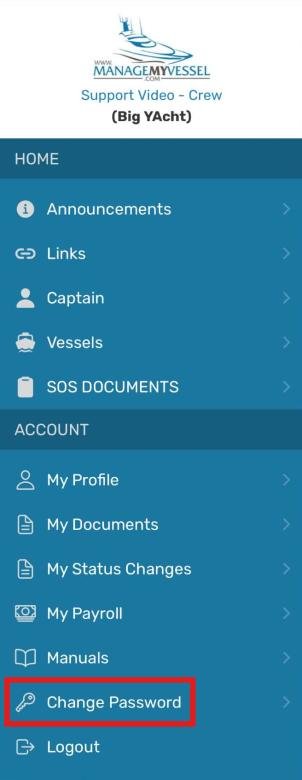
App side menu with Change Password highlighted - Enter your Current Password. Enter your desired New Password. Confirm Password and click Submit.
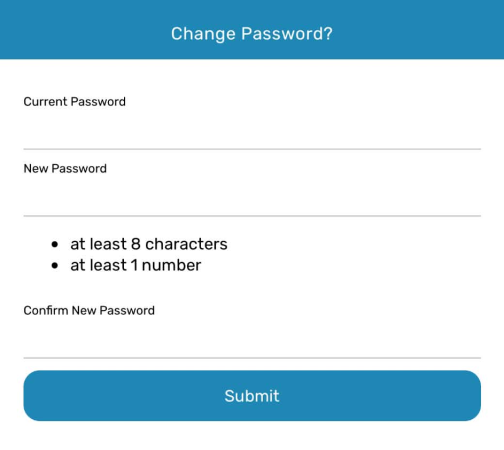
App Change Password form with Current Password, New Password, Confirm New Password fields and Submit button
Common questions
Can I reuse an old password?
MMV does not restrict password reuse today, but for security you should not reuse a password you've used before or one you use on another service.
Do I have to change my password on a schedule?
No forced expiry is built into MMV. Your management company may still ask you to update it periodically as a policy.
What if I don't remember my current password?
Use the Forgot Password option on the login screen instead — see the Forgot Password (Website) or (App) articles.
Was this article helpful?
Still need help?
Our support team will pick it up as a support ticket and reply by email.