Reset Password for Vessel User
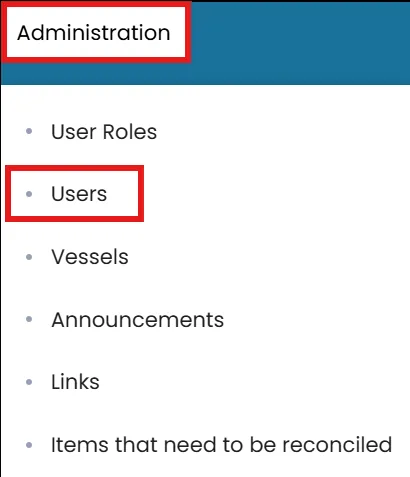
- On the Administration menu, select Users.
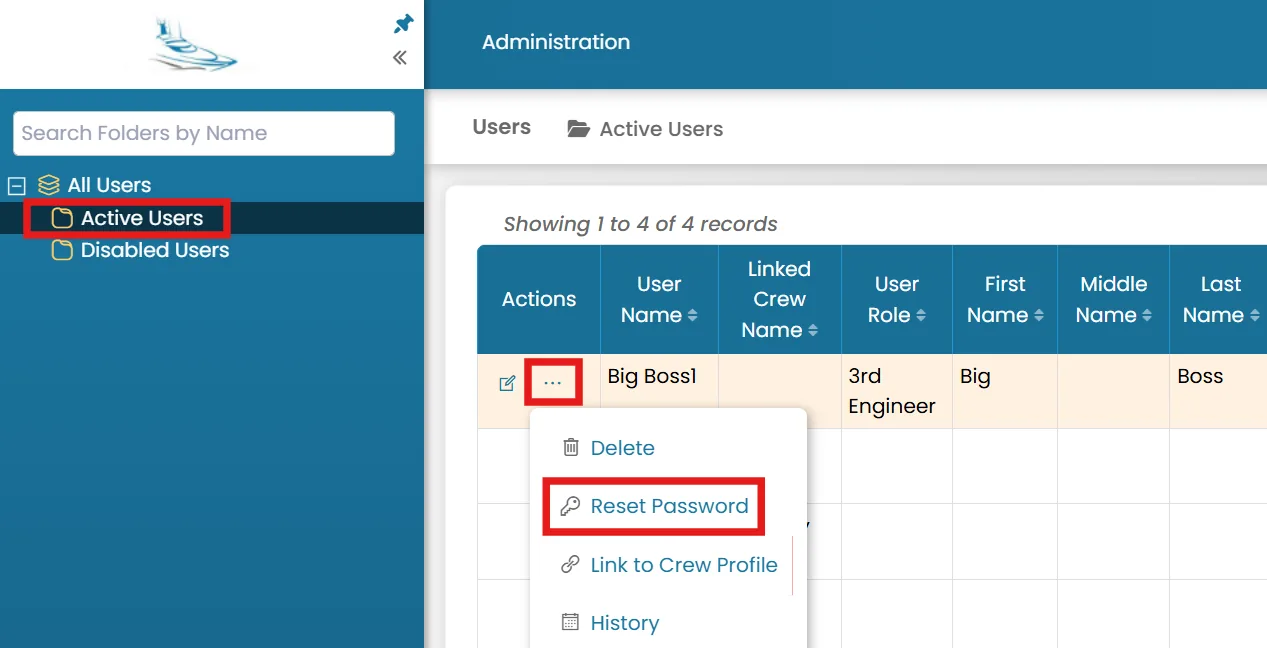
- In the Active Users folder, click the three dots next to the user you want to reset the password. Then select Reset Password.
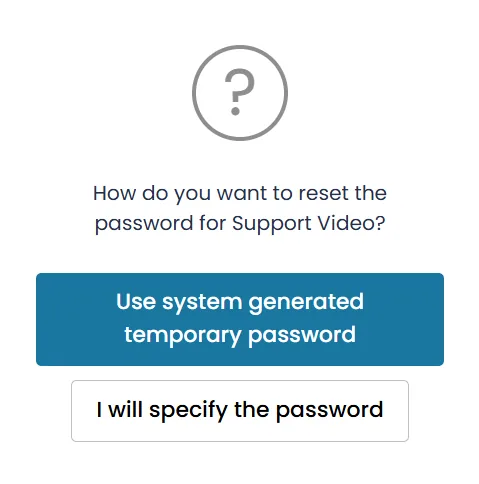
- Select how you want to reset the password.
- Choose Use System-Generated Temporary Password to have the system send a password reset email to the user's authentication email address. The user can then use the link in the email to create their own password.
- Alternatively, select I will Specify the Password to manually enter a password for the user during account creation.
Reset Password for Crew Member
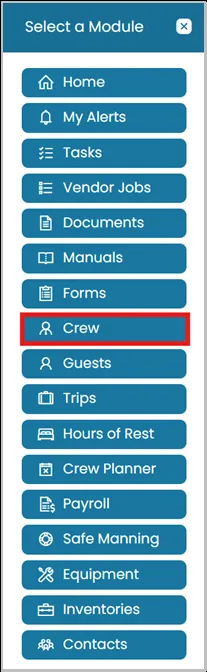
- Click Modules icon and select Crew.
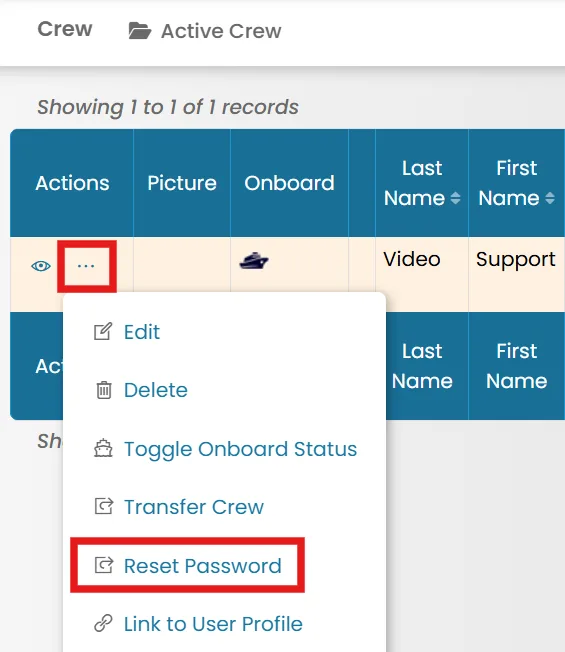
- Next to the crew member's name, click the three-dot menu, then select Reset Password.
Please note that Manage Own Record must be enabled for the crew profile to make the Reset Password option available.
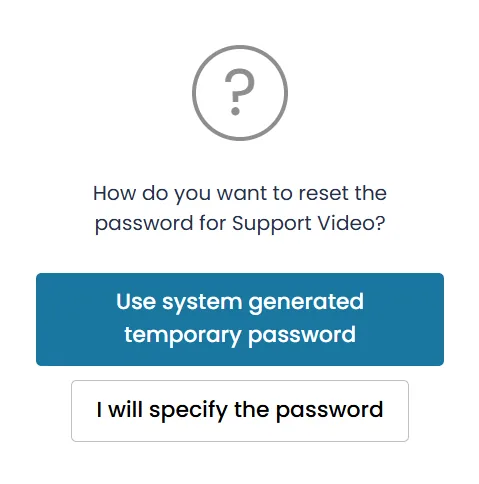
- Select how you want to reset the password.
- Choose Use System-Generated Temporary Password to have the system send a password reset email to the user's authentication email address. The user can then use the link in the email to create their own password.
- Alternatively, select I will Specify the Password to manually enter a password for the user during account creation.
Was this article helpful?
Still need help?
Our support team will pick it up as a support ticket and reply by email.