
Once a task has been completed, you can update its status to indicate that the required action has been finished. Marking a task as complete helps keep track of progress, provides visibility to other users, and ensures the task history is accurately maintained.
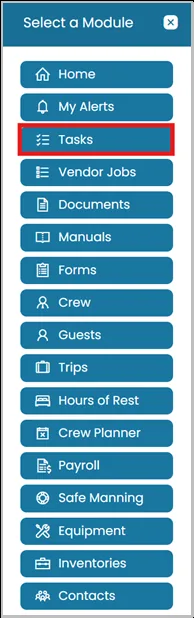
- Click the Modules icon and select Tasks.
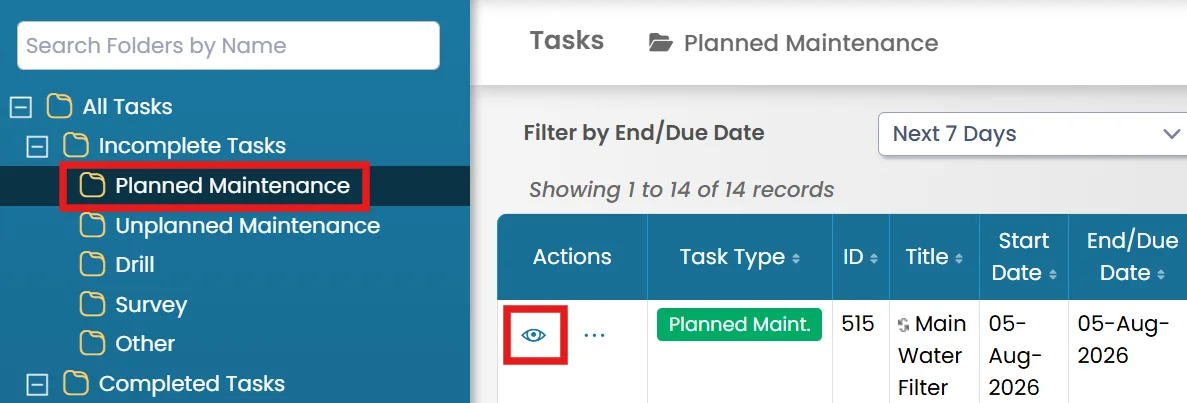
- In the Incomplete Tasks folder, locate the task you want to mark as complete.
Click the View icon to open the task details and review the information before updating the task status.
- In the top-right corner, click Mark as Complete to update the task status.

Alternative method:
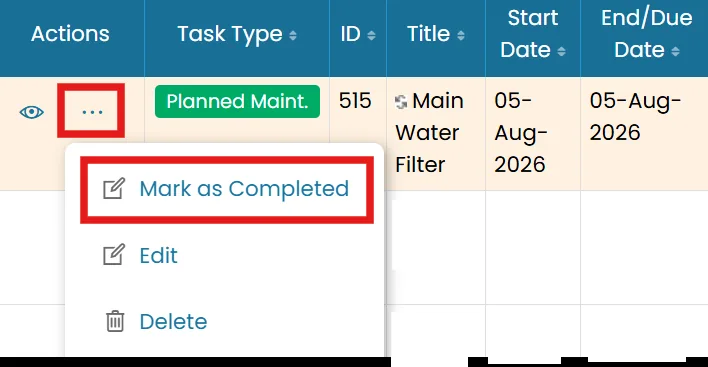
You can also mark a task as complete directly from the task list.
Click the three-dot menu next to the task and select Mark as Complete to update the task status.
Was this article helpful?
Still need help?
Our support team will pick it up as a support ticket and reply by email.