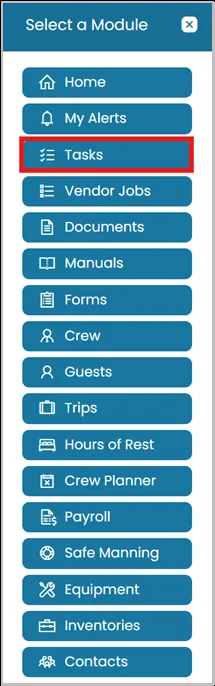
- Click the Modules icon and select Tasks.
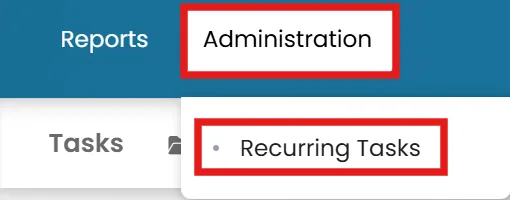
- In the top blue ribbon, click on Administration and select Recurring Tasks.
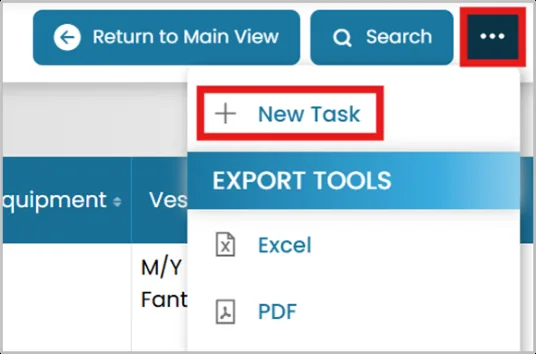
- To create a new recurring task, click the three dots on the top right and select New Task.
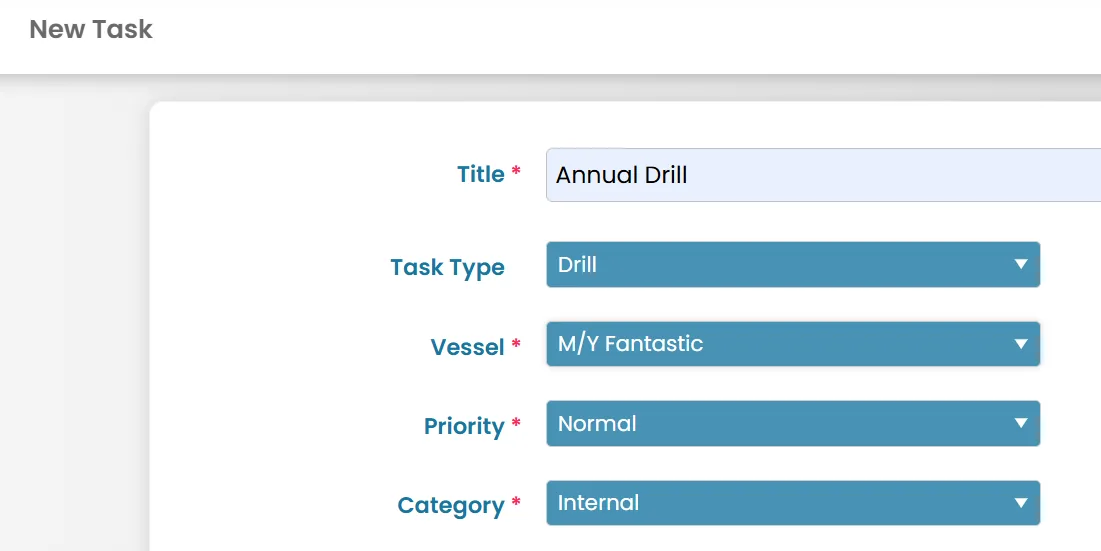
- Enter a title for your task and provide any relevant details or information. Fields marked with an asterisk (*) are required and must be completed before the task can be created.
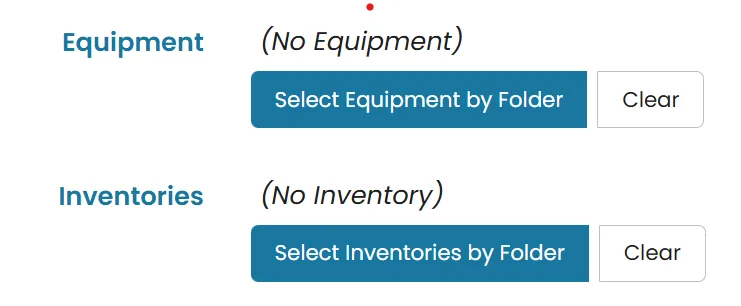
- You may also select an Equipment or Inventory folder to link the task to a specific item.
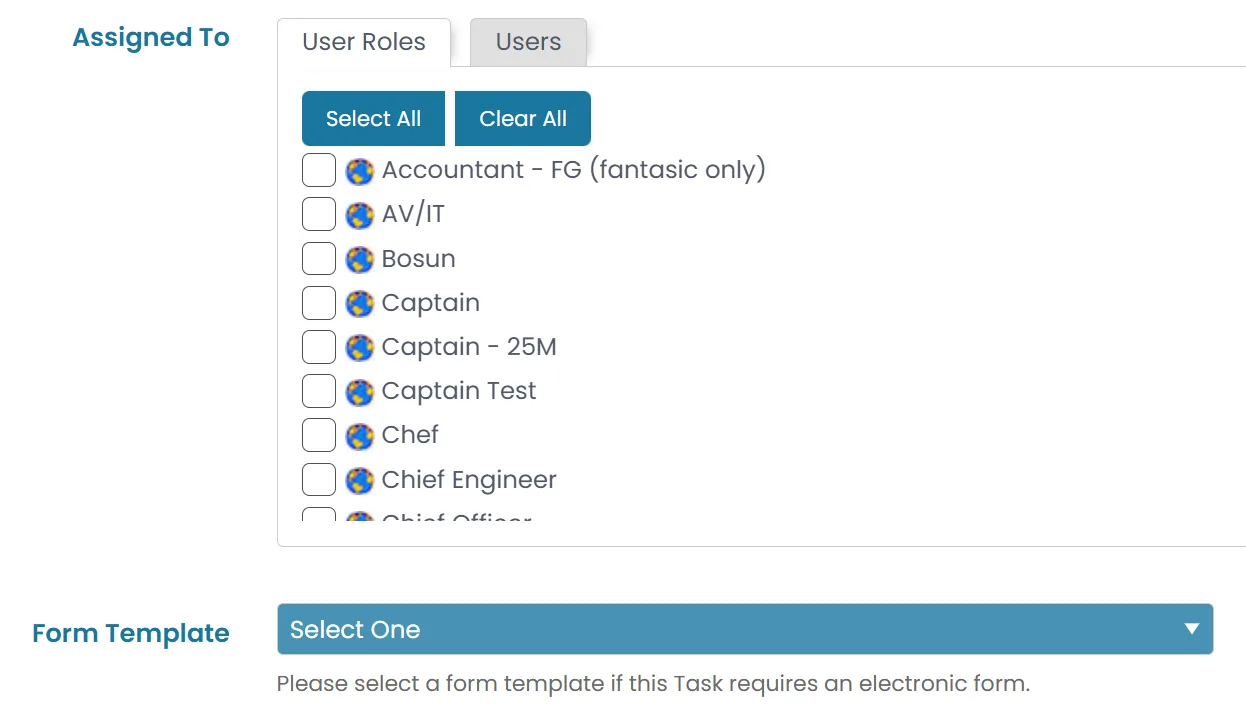
- Assign the task to the appropriate users or user roles who are responsible for completing it.
If an electronic form is required as part of the task, select the relevant form template to attach it to the task.
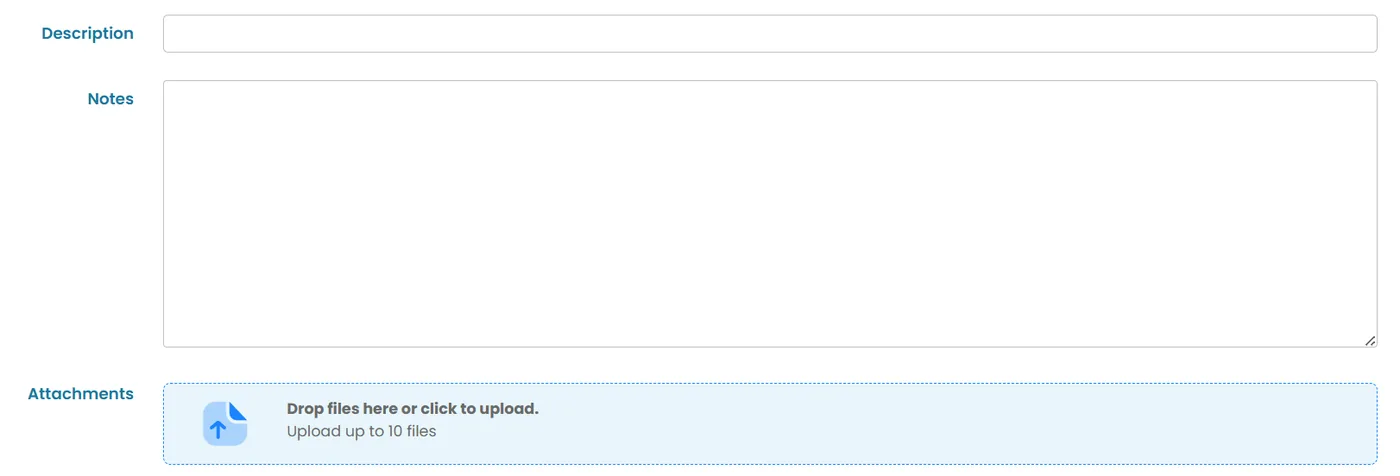
- Add a description to provide more details about the task and what needs to be completed.
Use the Notes section to include any additional instructions, reminders, or important information for the assigned users.
You can also attach relevant files or documents to provide supporting information and help users complete the task successfully.
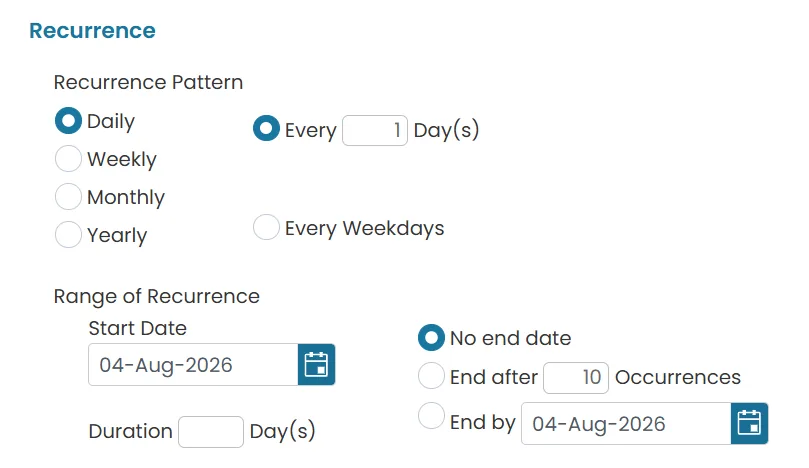
- Complete the task details in the Recurrence section.
- Once done, click Submit or Submit and Create Task Due Automation.

Was this article helpful?
Still need help?
Our support team will pick it up as a support ticket and reply by email.