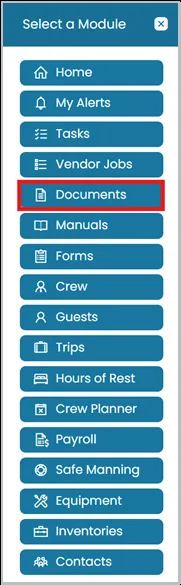
- Click Modules icon and select Documents.
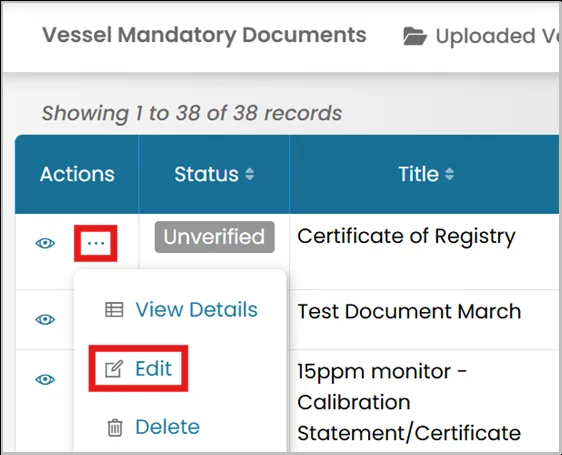
- Click the three dots next to the document's name and select Edit.
- This table lets you track survey periods for a document.
- Open Date — When the survey window opens (required).
- Closed Date — When the survey window closes (required).
- Type — The kind of survey (e.g., "Annual").
- Comment — Optional notes about the survey.
- Completion Date — The date the survey was completed, if applicable.
Use the + button to add another survey window row, or the trash icon to delete one.

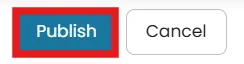
- Once you're done, click Publish in the top-right corner of the screen.
Was this article helpful?
Still need help?
Our support team will pick it up as a support ticket and reply by email.