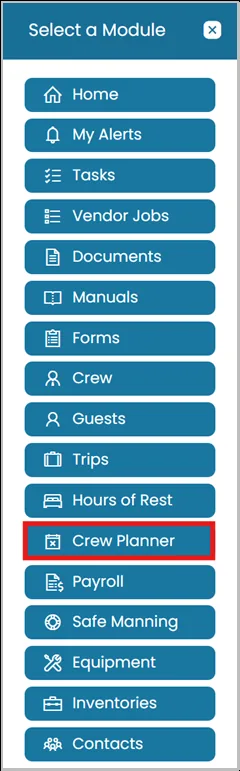
- Click on Modules icon and then select Crew Planner.
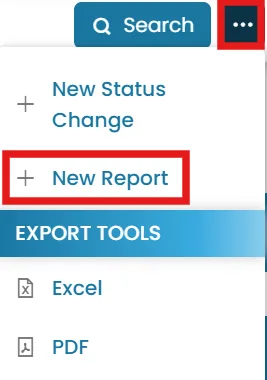
- From the left-hand folder structure, ensure you are in the All Status Change folder. Click the three-dot menu in the top-right corner and select New Report.
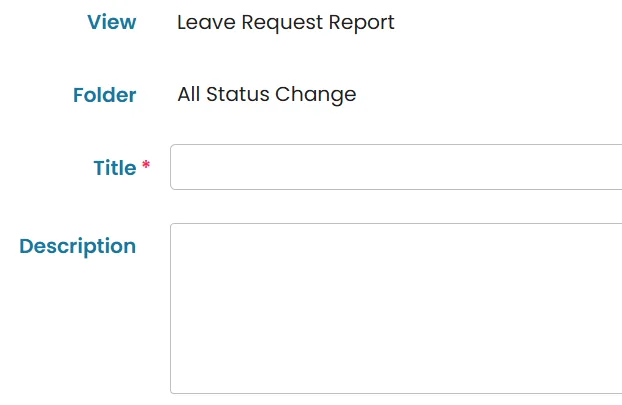
- Provide a descriptive title for your report.
Enter a brief description to explain the purpose of the report.
- Apply Filter Conditions (Optional)
- Click Add Simple Condition to filter by a single criterion.
- Click Add Nested Condition to create more advanced filter combinations.
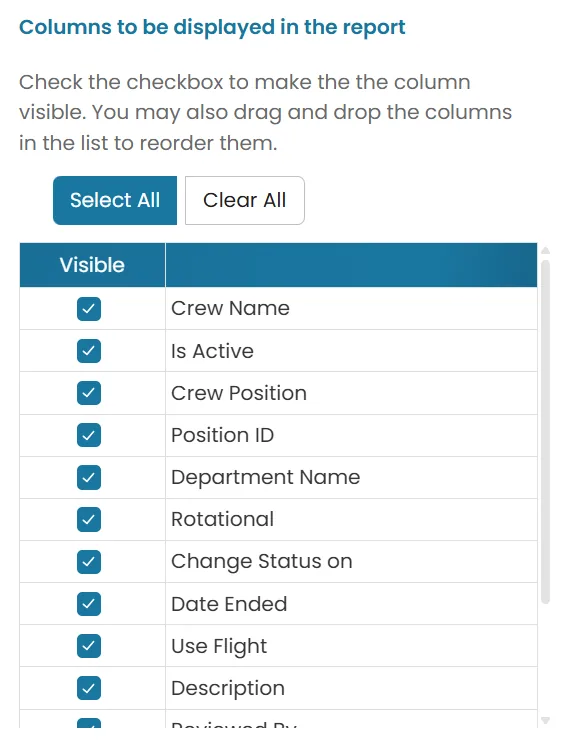
- Choose the Report Columns Select the information you want to display in the report by checking or unchecking the available columns. You can also drag and drop the columns to change their display order.
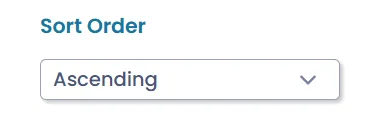
- Set the Sort Order Choose whether the report should be sorted in Ascending or Descending order.
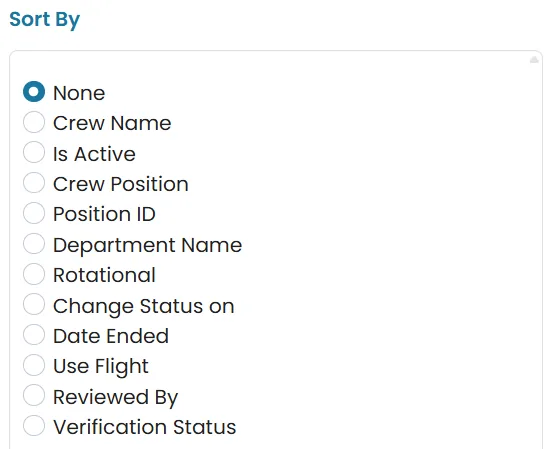
- Select a Sort by Field Choose the field used to sort the report.
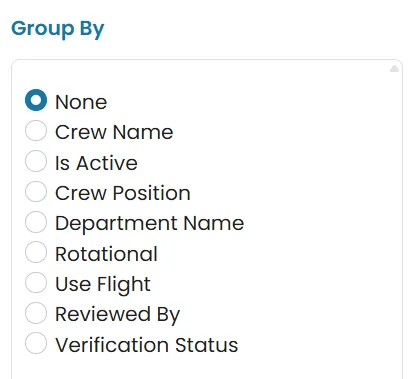
- Group the Results (Optional) If required, group the report by Crew Name, Crew Position or other options available.
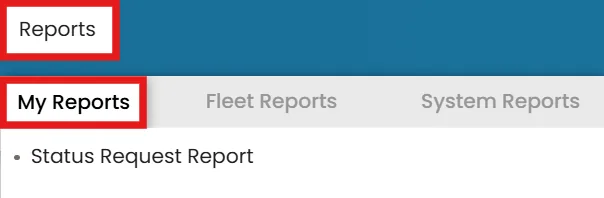
- Once you have successfully created a report, you can run it by clicking Reports in the top blue ribbon and selecting the My Reports tab.

New in Release 2026-08-15
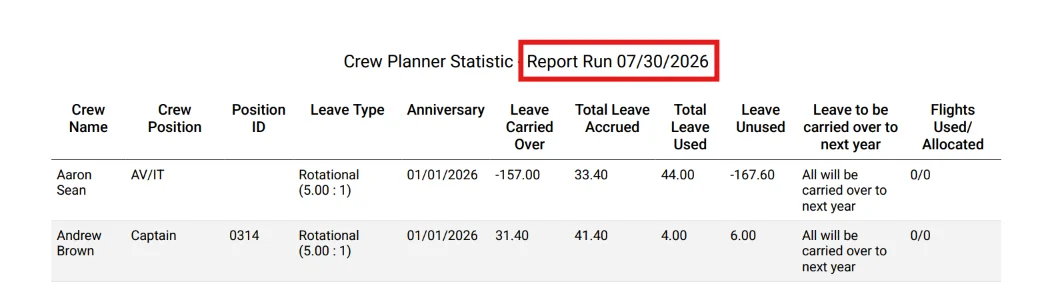
Include Report Date in Crew Planner Statistics Export
The Crew Planner Statistics export now includes the report's effective date in both the PDF title and at the top of the report. This makes it easy to identify when the report was generated.
Why: Including the report date improves record keeping and helps users quickly identify the reporting period when reviewing, sharing, or archiving exported reports.
Where to find it: Homepage → Crew Planner Module → Reports → System Reports tab → Select Crew Planner Statistics → Click the three dots → Select Export Tools as PDF
See Release Notes for August 15, 2026 for full details.
Was this article helpful?
Still need help?
Our support team will pick it up as a support ticket and reply by email.