This is a compliance report for vessel-level documents. It checks things like vessel certificates, licenses, and survey-tracked documents — flagging what's missing, expired, or unverified across the vessel.
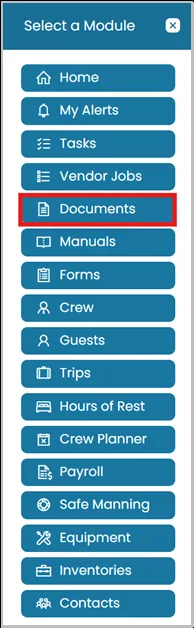
- Click Modules icon and select Documents.
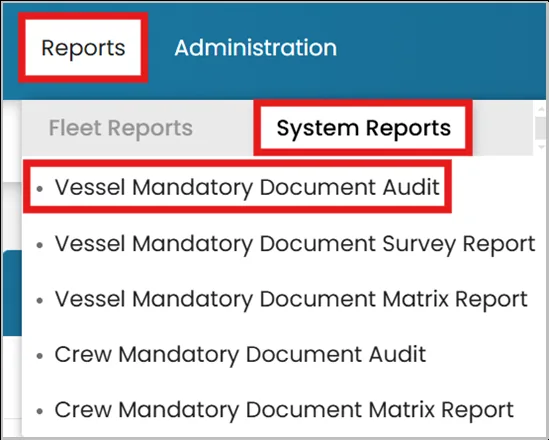
- Under Reports in the blue ribbon, select the System Reports tab. Then, choose Crew Mandatory Document Audit.
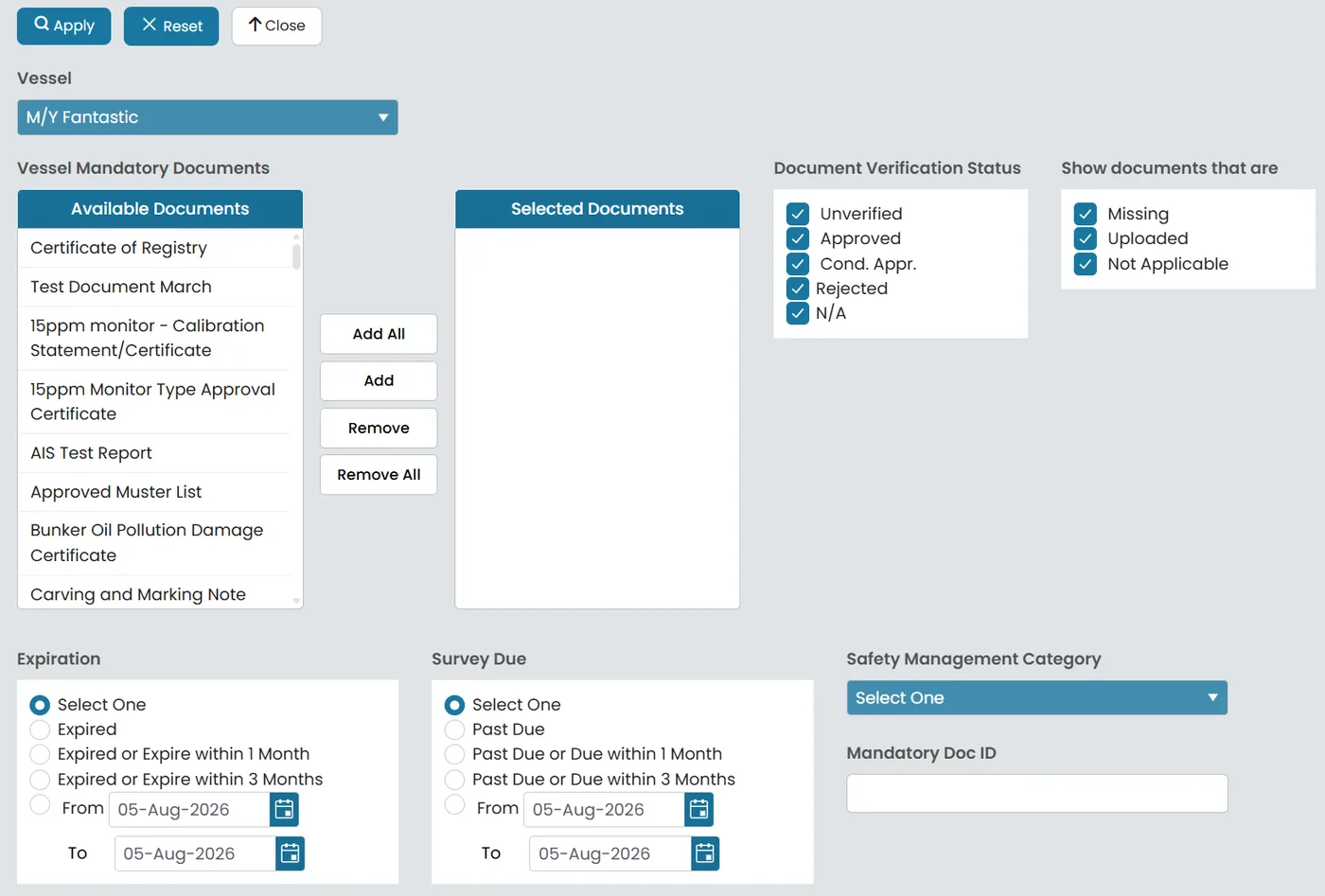
- Clicking Search opens this panel, where you narrow down the audit report before running it.
- Filtering the Audit Report
- Vessel — select which vessel to audit.
- Vessel Mandatory Documents — move specific document from "Available Documents" into "Selected Documents".
- Document Verification Status — filter by Unverified, Approved, Cond. Appr., Rejected, or N/A.
- Show documents that are — filter by Missing, Uploaded, or Not Applicable.
- Expiration — filter by a date range, already expired, or expiring within 1 or 3 months.
- Survey Due — same idea but for survey windows: Past Due, or due within 1 or 3 months, or a custom date range.
- Safety Management Category — dropdown to filter by the document's SMS category.
- Mandatory Doc ID — text field to search for a specific document ID.

Once your filters are set, click Apply to run the audit with those criteria.
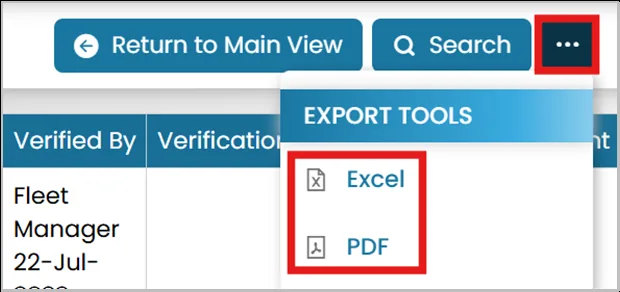
- Once you have finished filtering the audit, click the three dots (⋮) and select whether you want to export the report as an Excel file or PDF.
Was this article helpful?
Still need help?
Our support team will pick it up as a support ticket and reply by email.