By linking a user to a crew profile, the crew member gains access to the system and can manage their own records. Depending on their assigned role and permissions, they may also be granted access to specific modules required for their responsibilities. This ensures that users have appropriate access based on their role while maintaining the security and integrity of the system.
Method 1: From the Crew Module
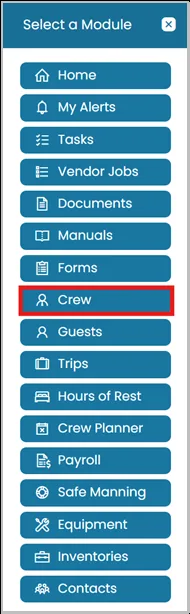
- Click Modules icon and select Crew.
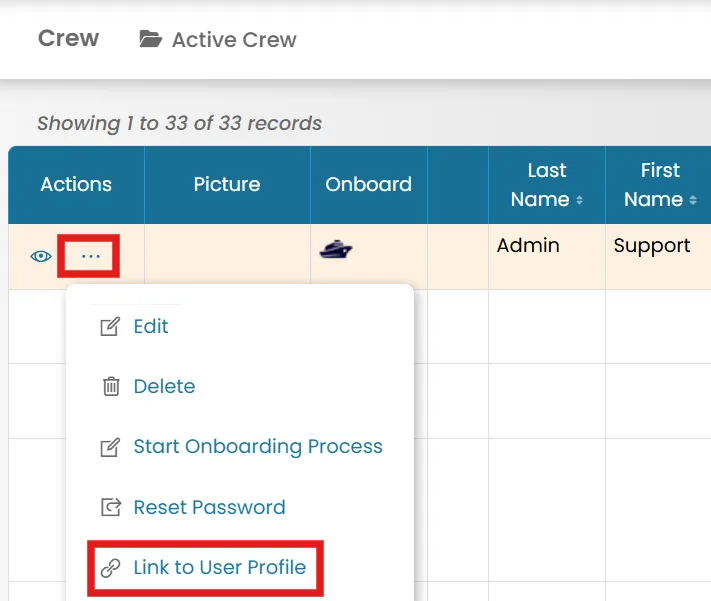
- Click the three dots next to the crew member's name and select Link to User Profile.
- If a user profile already exists, select the user from the list.
If no existing user profile is available, click New User to create a new user profile.
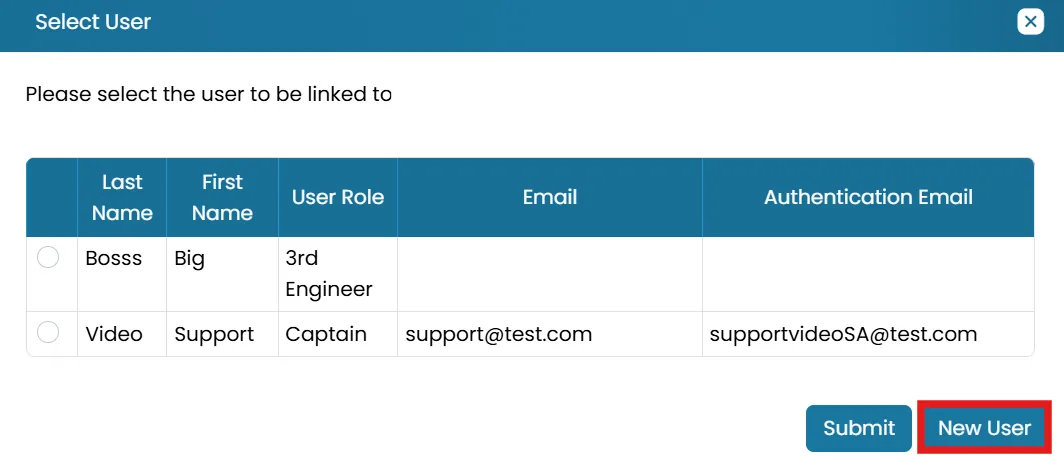
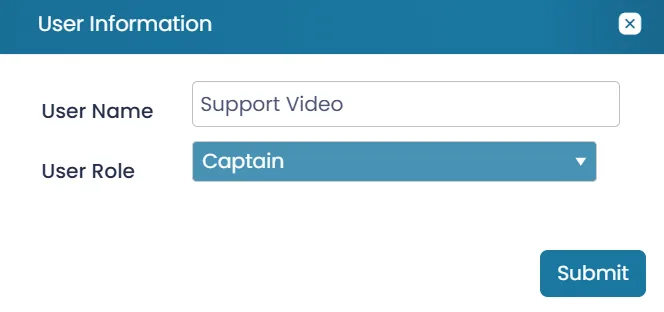
- When selecting New User, enter a username and select the appropriate user role. Ensure that the username is unique within Manage My Vessel.
Method 2: From the Administration Menu
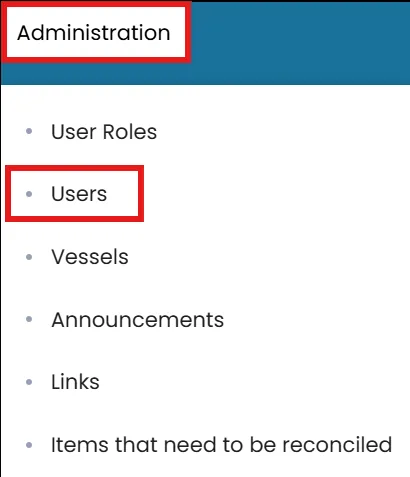
- On the Administration menu, select Users.
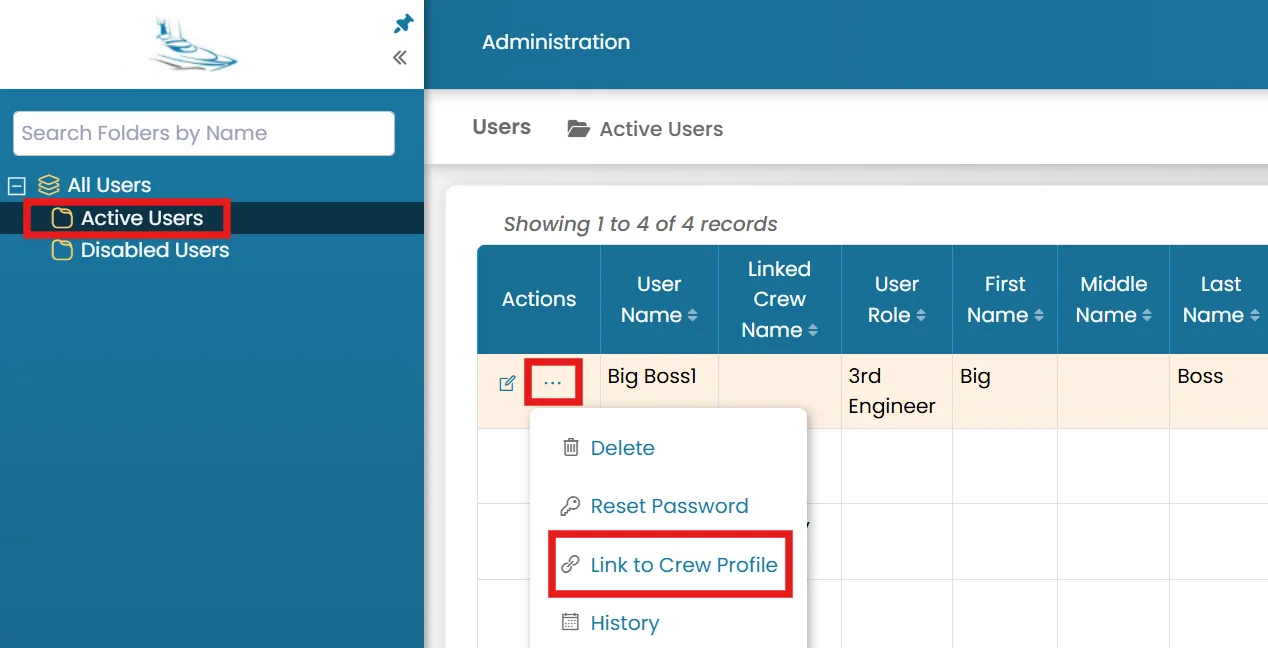
- In the Active Users folder, click the three dots next to the user you want to link to a crew profile. Then select Link to Crew Profile.
- Select the crew profile you want to link the user to from the list, then click Submit.
Was this article helpful?
Still need help?
Our support team will pick it up as a support ticket and reply by email.